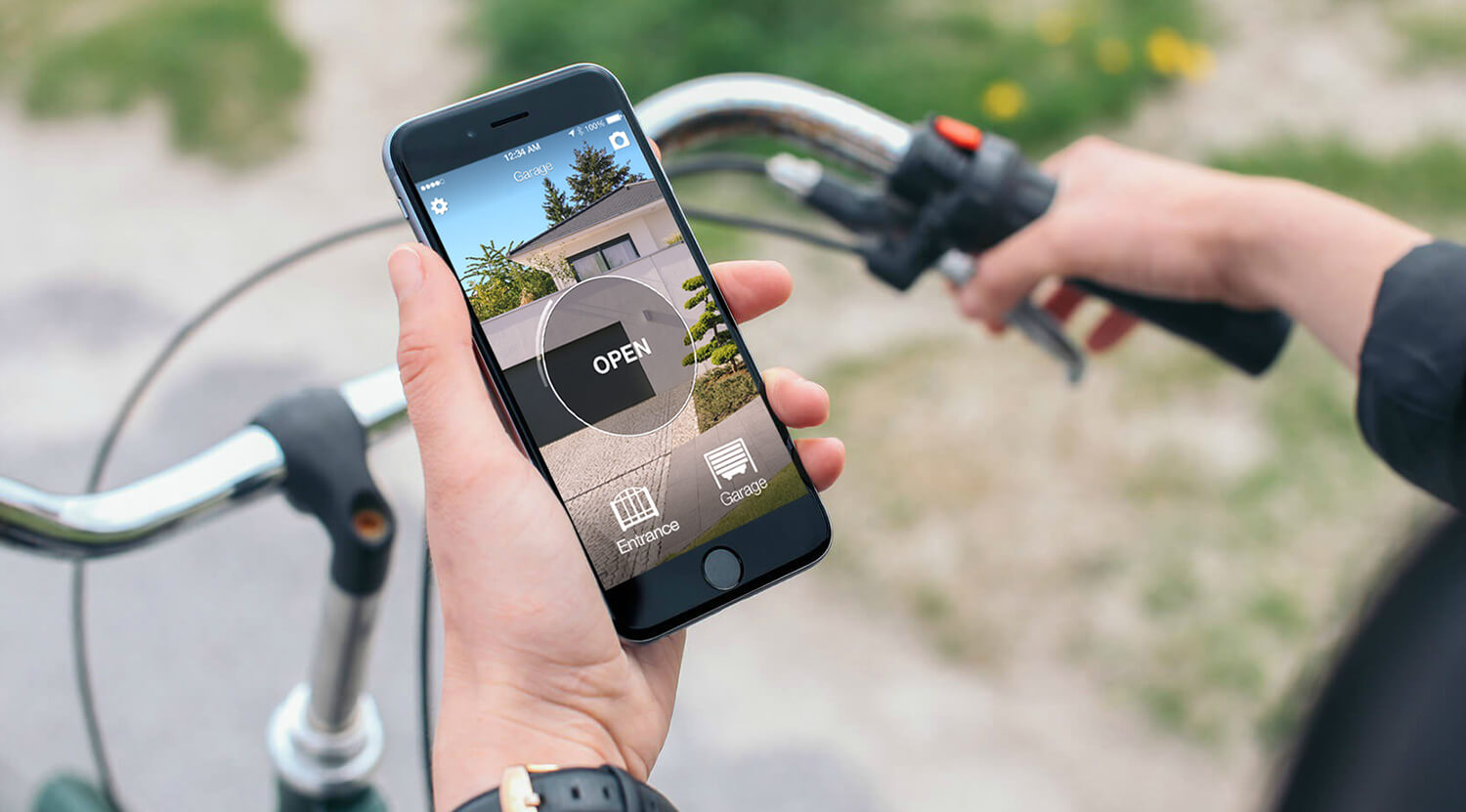
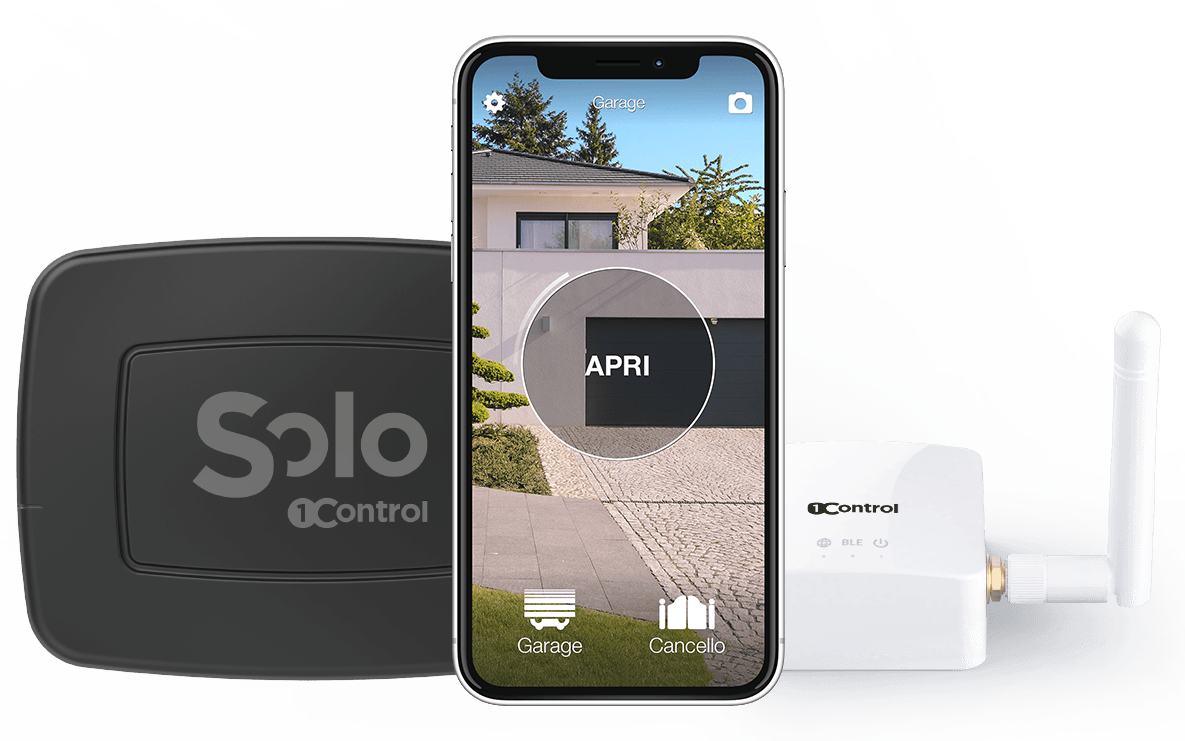
Short answer. No app opens a gate on its own: the phone does not transmit on the automation's radio frequencies. You always need a bridge device. With 1Control SOLO that bridge copies the remote you already own and is driven from the free 1Control app over Bluetooth — no wiring to the control board, no Wi-Fi at the gate, no subscription.
- Opening from far away, not just from the driveway, needs 1Control LINK, which carries the command beyond Bluetooth range.
- You would rather have a physical button in the car or on the keyring: the model choice is covered in which universal gate remote to choose.
- You arrive by car and the right place for the button is the dashboard screen: open the gate with CarPlay and Android Auto.
To open your gate with your smartphone you do not need to rebuild the system, swap the motor or run Wi-Fi all the way to the control unit. If you already have a compatible remote that opens the gate today, you can copy its signal onto 1Control SOLO and use the free 1Control app on iPhone, Android, Apple Watch or Wear OS to control gates, garages, up-and-over doors and barriers.
This guide focuses on the smartphone path with SOLO: install the device near the automation, copy the original remote, open from the app and share access with family, guests or staff. If you would rather have a traditional four-button handset as backup, the universal physical remote 1Control WHY covers that case.
What follows is the practical path: what you need before you start, how to check compatibility, how to set up SOLO in a few minutes and how to manage access after the first opening.
Open gate with smartphone: what you need to start
Setup begins with four ingredients: a smartphone with the 1Control app, a 1Control SOLO device, a working original remote and a gate or garage driven by a compatible motor. "Original remote" means the handset you already use today to open the automation — not necessarily the one shipped by the manufacturer on installation day.
SOLO is a smart gate opener made in Italy, patented and fully wireless. It is not wired into the control unit and needs no mains power: it runs on two Type C alkaline batteries already inserted, with an average life of about two years at ten openings per day. From the gate's point of view, SOLO behaves like an additional remote: it replays the stored signal whenever an authorised smartphone sends the command.
The important point is that the existing remotes keep working. Copying the remote onto SOLO does not erase, block or disable any other handset. The transition can be gradual: anyone who wants the app uses the app, anyone who prefers a physical button keeps using the old remote or a WHY.
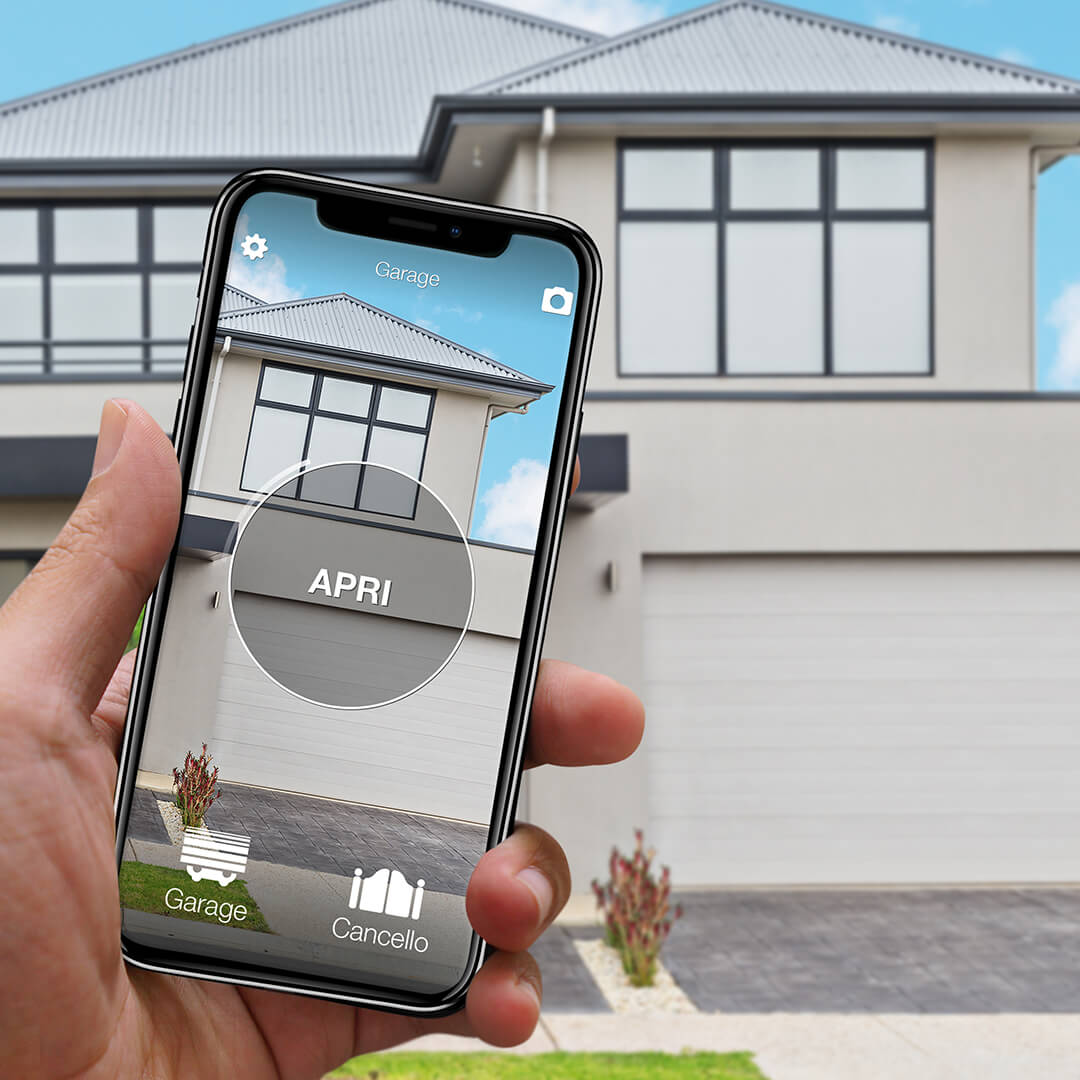
Want to open your gate from your phone?
Check in seconds whether your system is compatible with 1Control SOLO: it fits existing gates and garage doors, one-off purchase, no subscription.
139,00€ 109,00€ VAT included
- 1,500+ reviews on Amazon, Facebook and Trustpilot
- Secure payments
- 2-year warranty
1. Check your remote control compatibility
Before you buy or set up a smartphone gate opener, check the remote model. SOLO supports more than 800 remote models for gates, garages, up-and-over doors and barriers, both fixed-code and rolling-code, but compatibility must always be verified against your specific model.
The check happens on the 1Control SOLO compatibility checker: pick the brand and model of the remote and see whether copying is supported. If you cannot find the model, look for codes printed on the back or inside the remote — many manufacturers reuse similar commercial names across different radio families.
If the remote is compatible, you can move on to the guided setup. If you no longer have a working remote at all, the path is different: start from the guide on how to open the gate without the original remote to understand when you need an administrator, the installer or direct access to the control unit.
2. Install the 1Control app and register
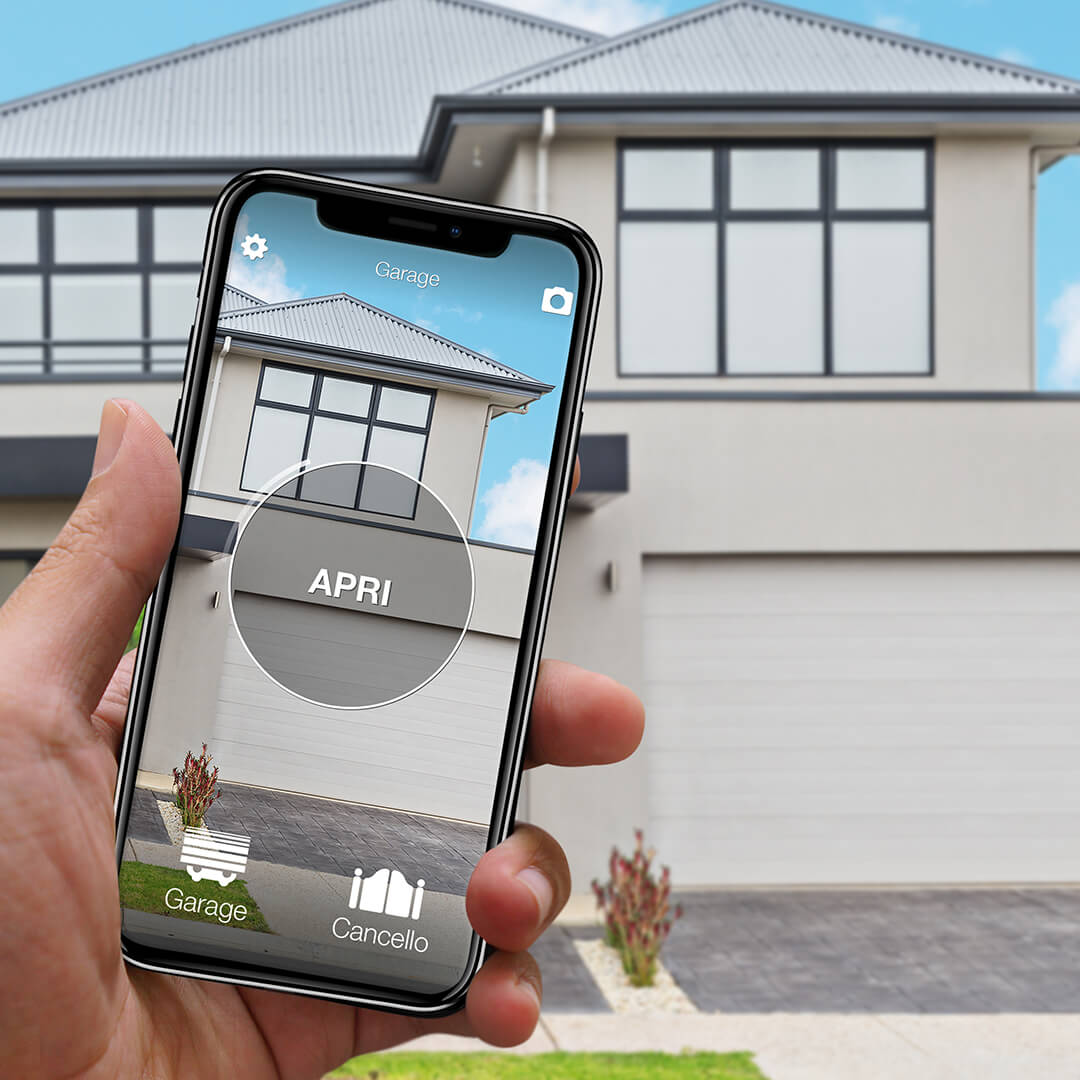
The 1Control app is free and available for iPhone and Android. On first launch it asks you to register with your phone number, verified via an OTP code sent by SMS — the same flow you see in messaging apps. Registering by phone number makes user identity explicit and is the foundation of access sharing.
Whoever pairs SOLO using the device's secret PIN becomes the administrator. The admin can copy or delete remotes, see the opening history and create shares for other users. A user who receives a share, on the other hand, can open the automation according to the rules the admin defined — for example only on certain dates or time windows.
This model is useful at home, but becomes much more relevant in contexts like small offices, B&Bs, second homes and authorised condominiums. You do not have to hand over a physical handset, remember to take it back or replace it if it gets lost: you simply manage the permission from the app.
3. Copy the original remote to SOLO
The remote is copied from inside the 1Control app. The exact procedure varies by model, because each brand can use different logic, but the app walks you through every step. Typically you are asked to hold the remote close to SOLO and press the button you want to copy for a few seconds.
You only need to copy one remote per automation. If you have a driveway gate and a garage, you will copy the gate command and the garage command — you do not need to copy every family member's handset. The standard version of SOLO can control up to four automations, even of different brands and types, as long as the respective remotes are compatible.
Some automations, especially rolling-code ones, may also require manual registration on the control unit — the same authorisation step you would do for any additional remote. If your motor needs it, the app flags it and guides you. It is not a structural change to the system: it is the normal "memorise a new authorised device" routine.
4. Place SOLO near the gate
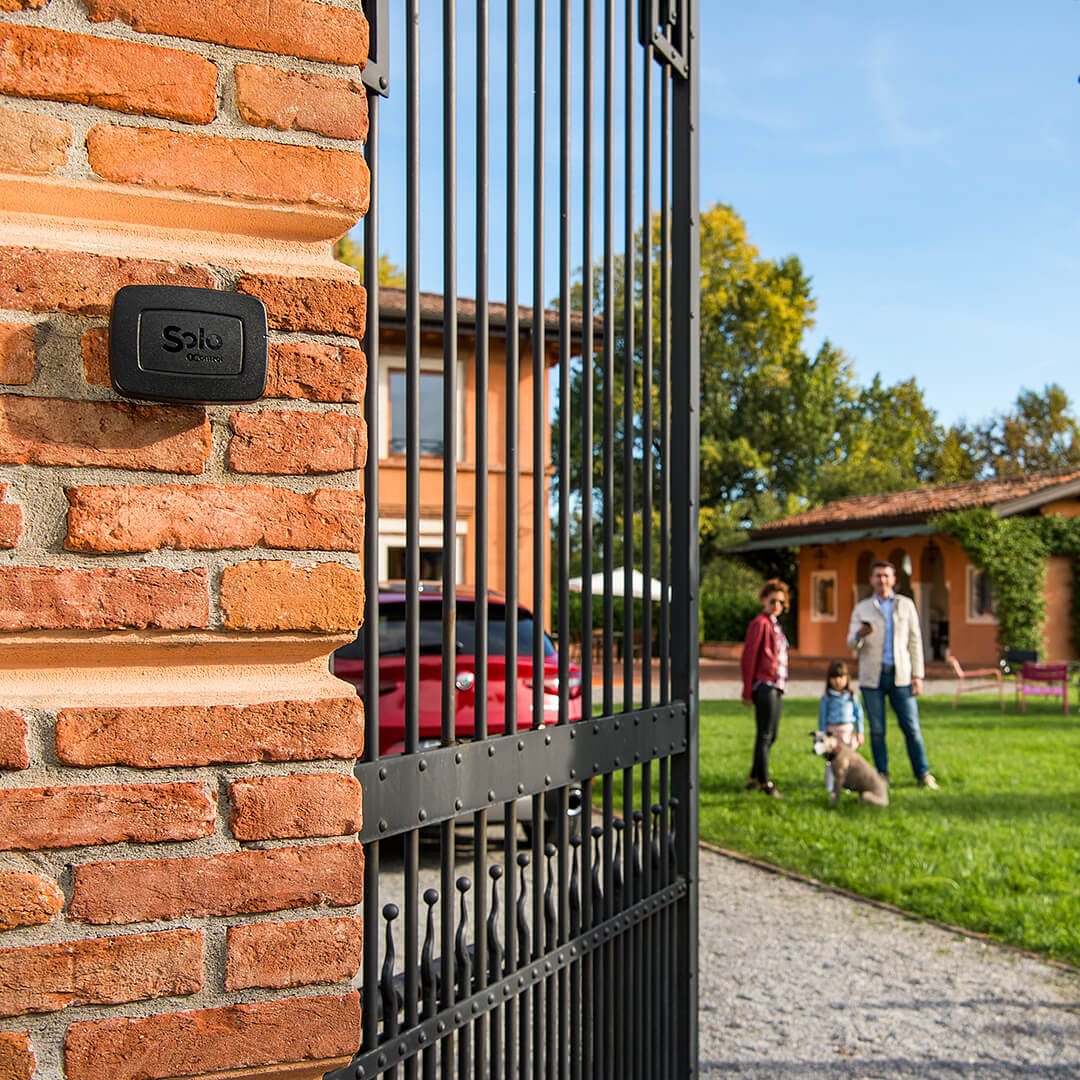
SOLO talks to the smartphone over Bluetooth Low Energy and replays the radio signal of the remote towards the automation. For that reason it must sit close to the gate, garage, barrier or up-and-over door it is meant to control. It is designed for outdoor use and weatherproof, so it can be fixed with the included bracket on a wall or post.
The typical distance between phone and SOLO is around 15–20 metres, but thick walls, reinforced concrete and obstacles can shorten it. In practice, pick a spot that lets the gate open as you reach the street or the driveway, not just the spot nearest the control unit. If you need to drive several nearby automations, a single SOLO can be enough; if they are far apart, use separate devices.
5. Open the gate from the smartphone app
Once set up, opening the gate from the smartphone becomes an everyday gesture: launch the 1Control app, pick the automation and send the command. For local opening there is no need for internet at the gate and the Wi-Fi router does not have to reach all the way down the driveway. The phone just has to be close enough to SOLO to talk over Bluetooth.
This makes sense in underground garages, in homes where the gate sits far from the router, in second homes and in places with patchy mobile coverage. Local opening is device-first: the command goes from the phone to SOLO without depending on a cloud for every action.
If you wear a compatible smartwatch, you can open from Apple Watch or a Wear OS watch. Smartwatches from Garmin, Huawei Watch OS and Amazfit are not supported. For everyone else, the app stays the single hub for opening, user management, shares and the access log.
6. Share access with family and guests
One of the main reasons to open the gate from the smartphone is people management. With a traditional remote, every new user needs a physical duplicate. With SOLO, the admin creates a share from the app by choosing the recipient's phone number, the automation to share and any time-based limits.
The invited person installs the 1Control app, registers with the same number indicated in the share and automatically finds the access available. Shares are free of charge and can be revoked when no longer needed. This is handy for family members, staff, temporary guests, gardeners, cleaners or suppliers.
For home use, the principal family members are often all admins. For business or hospitality use, it makes more sense to separate admins from shared users, so each person only uses what they need and only when they are authorised.
Sharing also helps with the people who work in your home every week: in the guide on house keys for cleaners and dog sitters we show how to grant time-limited access and revoke it in one tap.
Open the automatic gate from smartphone remotely: when LINK matters
On its own, SOLO is a local Bluetooth gate opener. That means it works without internet for proximity opening, but it cannot open the gate from another city or when you are out of Bluetooth range. If you want remote control, voice assistant integration or use with Apple CarPlay and Android Auto, the answer is to add 1Control LINK.
LINK does not turn SOLO into a pure Wi-Fi device: it bridges your home or office internet network and the 1Control devices over Bluetooth LE. LINK plugs into the router via 2.4 GHz Wi-Fi or Ethernet cable, then communicates with SOLO, DORY or LOCO within its own Bluetooth range. It is the piece that extends remote reach without changing how SOLO talks to the gate.
Traditional remote, SOLO or SOLO with LINK: comparison
| Criterion | Traditional remote | 1Control SOLO | SOLO + LINK |
|---|---|---|---|
| Local opening | Yes, physical button | Yes, from the app over Bluetooth | Yes, from the app and remotely |
| Internet needed at the gate | No | No for local opening | Yes for remote control |
| Temporary shares | No | Yes, from the 1Control app | Yes, including cloud features |
| Access history | No | Yes | Yes |
| Voice assistants and in-car | No | No | Yes, with Alexa, Google Home, CarPlay and Android Auto |
| Installation | None if already paired | Wireless, near the gate | SOLO near the gate, LINK near network and Bluetooth |
When opening from smartphone really pays off
Opening the gate with the smartphone makes the biggest difference when the problem is not just pressing a button, but managing people. If your family has a handful of users and a remote each, the main benefit is convenience. If you have to authorise guests, external staff, suppliers or collaborators, the difference becomes organisational: you no longer hand out objects, you hand out permissions.
SOLO is the right fit when the gate already works well and you want to add smart management without replacing the existing automation. It stays compatible with the original remotes, needs no hub for local opening and can grow with LINK if you later want remote control and smart home integrations.
Frequently asked questions
Can I open my gate with my smartphone?
Yes. With 1Control SOLO you can copy the signal of a compatible remote and open gates, garages, up-and-over doors and barriers from the 1Control app over Bluetooth.
Do I need the original remote?
To set up SOLO you need at least one working compatible remote to copy. If you no longer have it, start from the guide on how to open the gate without the original remote and consider control-unit access or installer support.
Do I need internet to open the gate?
No, not for local opening with SOLO. The smartphone talks to SOLO over Bluetooth. Internet is needed for registration, some app features and for remote control via the optional LINK.
Can I give access to other people?
Yes. The admin can create free shares from the 1Control app to other phone numbers, with optional date, expiry, day and time-of-day limits.
What if my smartphone runs out of battery?
If the smartphone is dead you cannot send the command from the app. That is why it is a good idea to keep a physical backup remote, such as the original one or 1Control WHY.
Does my old remote keep working?
Yes. Copying the remote into SOLO does not deactivate the remotes already in use. Smartphone and physical remotes can coexist without changing anyone's habits.
Conclusion
To open the gate from your smartphone, the simplest solution is to add a dedicated device to the existing system. With 1Control SOLO you copy the compatible remote, install a wireless smart gate opener near the automation and use the 1Control app to open, share and audit access.
The point is not just leaving the remote in a drawer. It is having more flexible access: local without internet by default, free shares for whoever needs to enter, an access log for the admin and remote control with LINK when it matters.