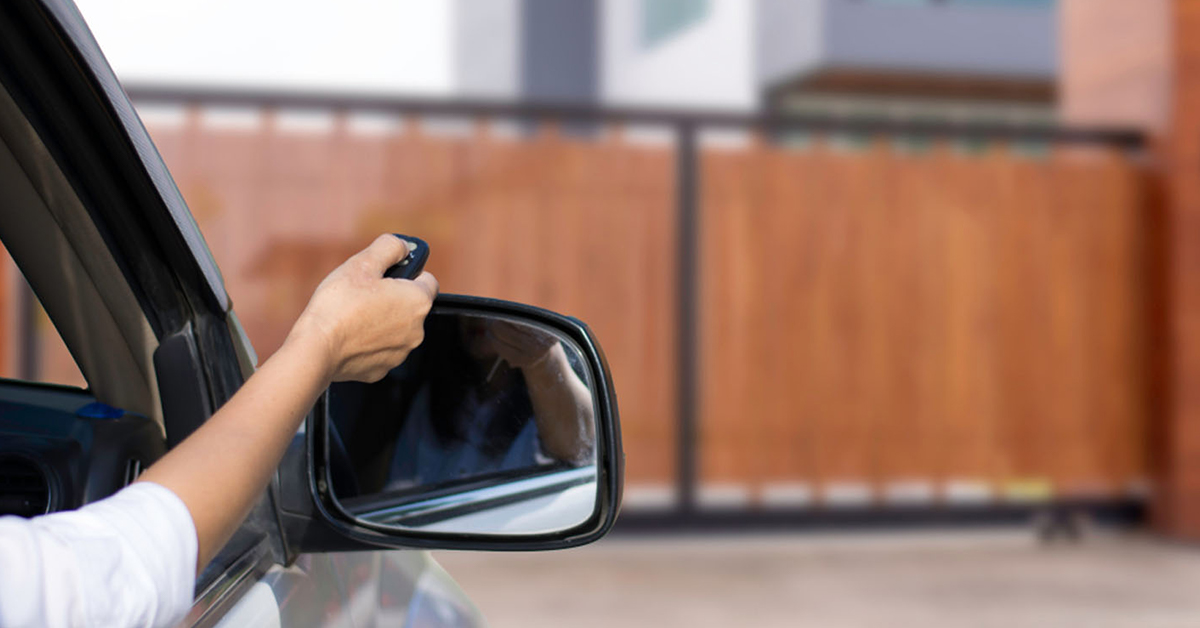
Gate remote programming sounds like a trivial job: grab the new transmitter, press a button on the gate controller and the new remote should open the gate. In practice, the word "programming" hides three very different operations, each with its own tools, time and chance of failure. Knowing which one you actually need is the fastest way to avoid wasted hours, returned parcels or a call-out fee for a technician.
There are three viable paths. The first is classic programming: authorising a new transmitter directly on the gate controller, by pressing a learn button (PROG, RADIO, LEARN, MEMO or similar) on the receiver board. The second is copying onto a universal remote like 1Control WHY, which replicates the radio signal of your existing remote without touching the controller. The third is moving to your smartphone with 1Control SOLO: a Bluetooth device that installs on the gate, copies the original signal during setup and then lets you open from the 1Control app.
This guide walks through all three paths. You'll find the generic procedure for programming a remote on the controller, brand-specific notes for the most common makes (Nice, Came, FAAC, BFT, Hörmann, Sommer, Somfy, Cardin), the copy procedure step by step with WHY, and the smartphone alternative with SOLO. The goal is simple: pick the right path before you start, and complete the job on the first try.
Gate remote programming: what it really means
Everyday speech mixes up three operations. Programming means writing a brand-new transmitter into the controller's memory, so its signal is recognised as authorised. Copying means replicating the signal of an already-authorised remote onto a new device: the controller doesn't know it's a different transmitter — it receives the same signal as before. Duplicating is the commercial term that's often used interchangeably with copying.
The distinction matters because the point of intervention changes. With classic programming you need physical access to the gate controller, which means authorisation (in shared installations like apartment buildings) and a few minutes near the motor. With a copy onto WHY or SOLO the work happens on the new device, close to the existing remote, and in most cases doesn't require touching the gate hardware at all.
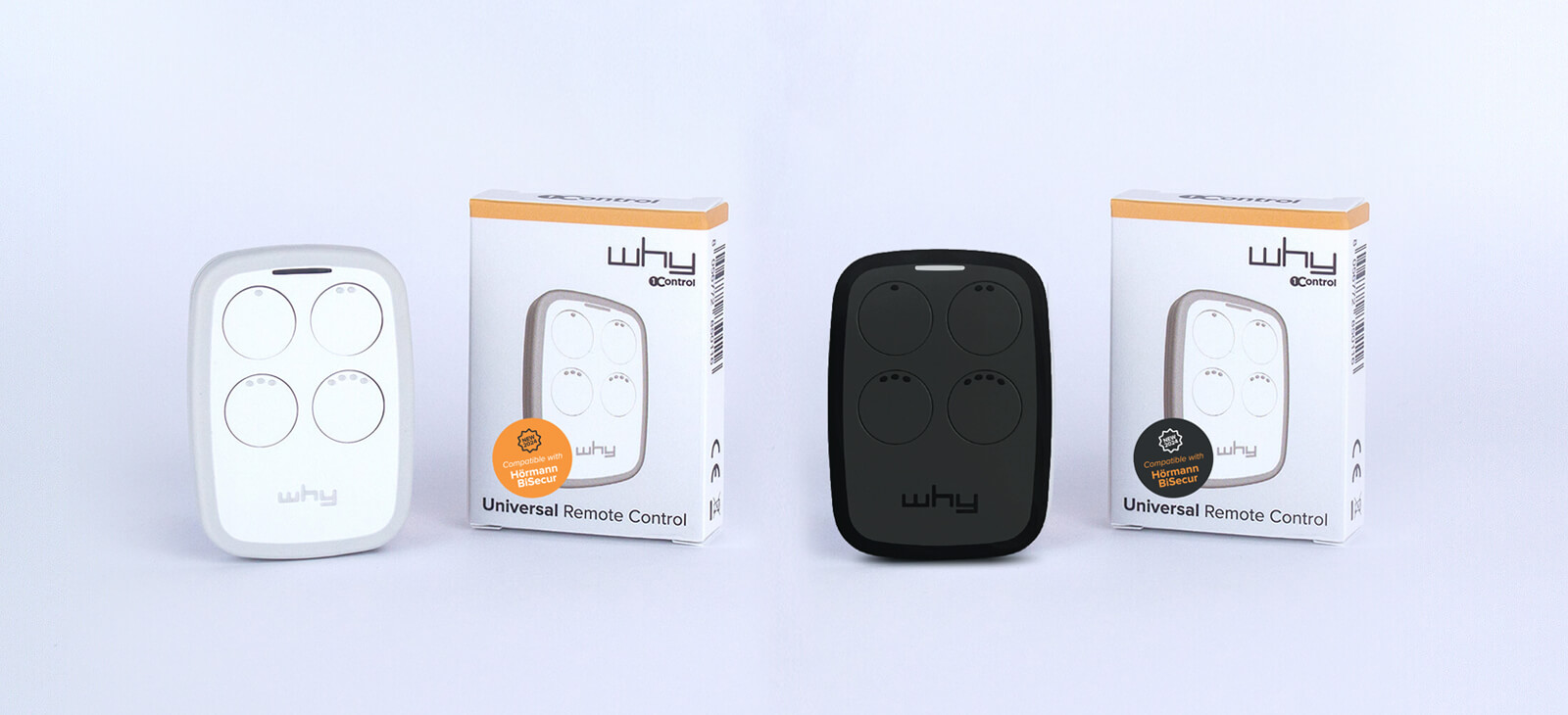
Want a new remote without calling an engineer?
Check in seconds whether your brand and model are supported: 1Control WHY copies or replaces your remote without opening the control unit and without touching the system. One-off purchase, no subscription.
58,00€ 49,00€ VAT included
- 1,500+ reviews on Amazon, Facebook and Trustpilot
- Secure payments
- 2-year warranty
Before you start: three things to check on the original remote
A successful copy or programming starts with a quick inspection of the original transmitter. Before you order a new remote or open the controller box, confirm three details: frequency, encoding type and exact model. These three checks separate a one-shot success from a wasted purchase.
Frequency: 433-868 MHz or quartz
Most modern gate and garage remotes operate in the 433-868 MHz band. That's the band covered by WHY and by smart openers like SOLO. Older transmitters — typical of pre-2000s installations — are often "quartz" remotes operating between 15 and 50 MHz (commonly 27.12, 30.9, 40.68 or 49.86 MHz). Brands such as Cardin (older series), Telcoma, Aprimatic, Allmatic and Roger frequently sit in this band. For quartz remotes WHY simply doesn't transmit on the right frequency, and the correct product is 1Control QZERO, the universal remote engineered for that range. The frequency is normally printed on the back label of the remote or available on the manufacturer's data sheet.
Fixed code vs rolling code
The other decisive parameter is the encoding type. A fixed code transmitter sends essentially the same bit pattern every time. A rolling code transmitter changes the code on every press, following a cryptographic sequence shared with the receiver — an intercepted code can't be replayed because it's already expired. Rolling code has been the default on automations installed in the last 10-15 years and is what cheap supermarket universal remotes typically fail on. WHY copies both fixed code and rolling code transmitters, within the compatibility list, which is what matters in practice for almost every recent installation.
Model and compatibility
Compatibility can't be inferred from the brand alone. Two remotes from the same manufacturer can use different protocols, different frequencies and different copy procedures. To be sure, look up the exact model on the WHY compatibility page or the SOLO compatibility page: if it's on the list, the copy is designed to succeed. For quartz remotes, check the WHY/QZERO compatibility page before deciding which product fits.
Classic procedure: program a new remote from the gate controller
Programming directly on the controller is the most traditional path. It works when you have physical access to the motor and a brand-new transmitter — usually sourced from the gate manufacturer or installer — to pair with the system. The generic sequence is similar on almost every recent automation.
- Open the receiver or controller enclosure: it's the box containing the electronic board, usually mounted near the motor. To prevent accidental short circuits, do the work with the gate closed.
- Find the learn button: depending on the brand it's labelled PROG, RADIO, LEARN, MEMO, P1 or similar. It's typically a small push button next to an indicator LED.
- Press and hold the learn button until the LED turns on solid or starts blinking steadily — the controller has entered learn mode.
- Press a button on the new remote you want to pair with the gate. The controller LED usually confirms with a different blink pattern or by switching off.
- Verify: close the enclosure, step back and try the new remote. If the gate moves, programming was successful.
If the gate is part of a shared installation — apartment building, gated community, commercial site — always ask the building manager or maintenance company before touching the controller. Shared automations have strict rules around adding new transmitters, and an unauthorised pairing can disrupt other users.
Programming a gate remote by brand: what changes
The most common brands sold across the UK and Europe share the same underlying logic but differ in small details — name of the learn button, blink patterns, master/slave conventions. The table is a starting reference: for the full procedure always check the controller manual or the dedicated 1Control help centre guides.
| Brand | Controller button | Notes |
|---|---|---|
| Nice | P1 / PRG | LED blink patterns indicate the state; some models support a "hidden button" on the transmitter for programming. |
| Came | PROG / CH1 | Memory is per-channel (CH1, CH2). Recent models with a display require selecting the channel before pairing. |
| FAAC | SETUP / RADIO | FAAC distinguishes master and slave remotes: only masters can generate clones. A brand-specific detail that doesn't apply to other makes. |
| BFT | SW1 / PROG | Some BFT transmitters have a small button on the back of the case to press during copying with SOLO. |
| Hörmann | P | BiSecur transmitters (HS-BS) require the button to be held down even after the LED has gone off. |
| Sommer | RADIO | Press RADIO with a small screwdriver, wait for the LED to come on, then transmit from the new remote. |
| Somfy | PROG / RADIO | Press PROG and wait around 10 seconds before transmitting from the new remote. |
| Cardin | PROG | Standard procedure: press the controller button and transmit from the remote close to the receiver. |
If you can't identify the controller model, you can send a photo of the electronic board to 1Control support: once the controller is identified, you'll receive a step-by-step guide tailored to that exact model.
Copy your remote onto 1Control WHY: step by step
If you'd rather not open the controller box — or you need to add a transmitter without calling a technician — the fastest path is to copy the signal of your existing remote onto a universal like WHY. The procedure happens far from the gate, all you need is the original transmitter at hand and a few minutes.
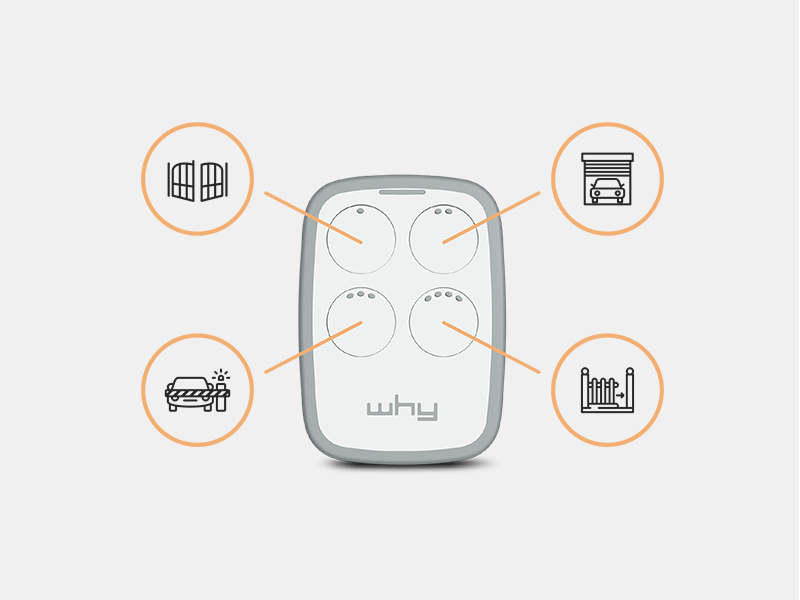
The general copy procedure with WHY is:
- Check compatibility of your original transmitter on the WHY compatibility page.
- Enter copy mode: press and hold button 1 on WHY while pressing button 2 four times. The LED starts flashing red.
- Bring the two devices together: hold the original remote in direct contact with WHY, or within a few millimetres.
- Transmit from the original remote: press and hold the button you want to copy for 3-4 seconds, then release. WHY learns the signal.
- Store the copy on a WHY button: press the WHY button (1, 2, 3 or 4) where you want to save the copy. From that moment, that button transmits the same signal as the original remote.
Exact steps vary slightly by brand: brand-specific copy guides are published on the WHY manuals page on the 1Control site. The practical advantage is that WHY's 4 buttons are fully independent: a single device can drive the gate at home, the garage door, the office barrier and a fourth access point — even across different brands, as long as each original remote is on the compatibility list. The CR2032 battery is replaceable, and copied transmitters stay in memory even with the battery fully removed.
Pair the gate with your smartphone using 1Control SOLO
The third path changes the paradigm: instead of a new physical remote, you install a smart device on the automation and use your smartphone as the transmitter. That's the idea behind 1Control SOLO, which behaves like a remote permanently parked next to the gate — it copies the signal of your original transmitter during setup and replays it every time you press the button in the 1Control app.
The typical procedure to "program" SOLO is:
- Install SOLO near the gate. It's battery-powered (two type C alkalines), so no wiring or drilling is required.
- Configure SOLO in the 1Control app and copy the signal of the original remote, following the step-by-step wizard on screen.
- Verify the opening: once confirmed, the smartphone becomes the new remote — usable from a watch too.
- Share access with family, tenants and guests directly from the app, with temporary or permanent permissions.
The difference compared to WHY is that SOLO isn't carried in a pocket: it stays installed next to the gate and talks to the smartphone over Bluetooth within about 15-20 metres. If you want to open from anywhere outside that range — across town, from work, via Alexa or Google Home — you add 1Control LINK, the bridge that connects the Bluetooth ecosystem to your home Wi-Fi and the internet. For a deeper look at the smartphone path, see our guides on copying a garage remote to your phone and on opening the gate with your phone without a remote.
Which path to choose: side-by-side comparison
The three paths aren't mutually exclusive. The right choice usually depends on what you already own, how far you want to modernise your access and how many people need to use the gate.
| Criterion | Classic programming | Copy onto 1Control WHY | Smartphone with 1Control SOLO |
|---|---|---|---|
| Controller access | Required | Usually not required | Not required for the signal copy |
| Number of accesses managed | One per remote | Up to 4 different accesses on the same WHY | Multiple accesses managed from the app, with user sharing |
| App or internet | No | No — fully offline | 1Control app; internet only with LINK for remote access |
| Average time | 5-15 minutes | 2-5 minutes per copy | 10-15 minutes initial setup |
| Battery | Manufacturer's remote | Replaceable CR2032, persistent memory | 2 type C alkalines, around 2 years of use |
Programming failed: what to check
If you followed the procedure and the gate still won't move, it's worth running through a short checklist before concluding that the remote or the device is faulty. The most common causes are few and almost always fixable without support.
- Retry the copy or the pairing: sometimes a second attempt with the two devices kept closer together, or pressing the original remote for slightly longer, is all that's needed.
- Check the source remote's battery: a flat or weak cell transmits a noisy signal that's hard to copy cleanly. If the original remote's LED is dim, swap the battery before trying again.
- Enrol the new remote on the controller: some automations — especially rolling code — require the new signal to be registered on the receiver board even after a successful copy. Brand-specific step-by-step guides cover the most common controllers.
- Mind the distance during testing: when you verify, step back from the motor calmly. A transmitter held too close to the receiver can saturate it and give the false impression of a malfunction.
- Always copy from the manufacturer's remote, not from another copy. Copy-of-a-copy chains degrade the signal quality and are much harder to replicate cleanly.
Common mistakes to avoid
The first mistake is choosing a remote on declared frequency alone. Frequency, encoding and protocol all have to match: the same 433.92 MHz transmitter can use HCS, KeeLoq, AES or a proprietary chip, and a remote that handles only one of those won't help with the others.
The second mistake is inferring compatibility from the brand. Two Nice or two BFT remotes can use entirely different protocols, so the model-level check is non-negotiable.
The third mistake is confusing a universal gate remote with a smart gate opener. WHY is an upgraded physical transmitter — it doesn't pair with the LINK bridge, doesn't open from an app and doesn't reach the gate from across town. If your goal is smartphone control, time-limited access sharing, opening logs or voice assistant integration, the right product to compare is SOLO, optionally with LINK. If you simply want a better physical remote, WHY remains the direct answer. And in shared installations, never touch the controller without authorisation from the building manager — it's the small detail that avoids arguments and unplanned downtime for everyone.
Frequently asked questions
Can I program a new gate remote without calling a technician?
Yes, in most cases. Modern gate controllers have a learn button (PROG, RADIO, LEARN, MEMO or P1 depending on the brand) that registers a new transmitter in seconds. Alternatively, you can copy your existing remote onto 1Control WHY, or switch to a smartphone-based opener with 1Control SOLO without touching the controller.
Is programming a gate remote the same as copying one?
No. Programming authorises a new remote on the gate controller, which has to be set into learn mode. Copying replicates the radio signal of an already-authorised remote onto a new device such as WHY or SOLO; the controller still sees the original signal, so no controller-side intervention is needed. Copying is usually faster, provided the source remote is on the compatibility list.
Does 1Control WHY work with rolling code remotes?
Yes. WHY copies both fixed code and rolling code transmitters in the 433-868 MHz band, across every model on the supported list. Some controllers also require enrolling the new remote on the receiver board after the copy — a separate one-time pairing step.
Do I have to redo the copies if I replace WHY's battery?
No. WHY's memory is non-volatile: the four stored remotes are preserved even with the CR2032 cell removed. Swap the battery and the device is ready again — no need to repeat the copy procedure.
Will my original remotes stop working if I use WHY or SOLO?
No. Both products sit alongside the original transmitters. Copying the signal doesn't deauthorise the source remote on the gate controller, so the originals keep working exactly as before.
What if my remote is a quartz (older) model?
Quartz remotes operate between 15 and 50 MHz and aren't supported by WHY. The right 1Control product for that frequency family is QZERO.
Conclusion
"Programming" a gate remote today means choosing between three complementary paths: the classic procedure on the controller, the copy onto a physical universal like 1Control WHY, or the move to a smartphone with 1Control SOLO. The fastest is the copy with WHY, because it doesn't require touching the controller and lets you manage up to 4 different accesses on a single device. The most complete, in smart terms, is SOLO: app, user management, access sharing and — with LINK — remote access and voice control.
Before deciding, spend five minutes on the three checks: frequency, encoding and exact model of your original remote. From there the choice becomes obvious, and the risk of buying the wrong product drops to zero. To compare alternatives side by side, see our guide on how to choose a universal gate remote.
And if the conclusion is that the physical handset is itself the problem — one goes missing every year, the kids each want their own, the guest has none — the alternative is to stop duplicating objects: open the gate with your smartphone.