
In short: most people use a fraction of the Alexa commands that would genuinely make their home easier to run. If you only remember ten, make it these:
- “Alexa, set a pasta timer for 10 minutes” — named timers, several at once
- “Alexa, add milk to the shopping list”
- “Alexa, remind me to put the bins out every Sunday at 9 pm”
- “Alexa, announce that dinner is ready” — plays in every room
- “Alexa, drop in on the kitchen” — room-to-room intercom
- “Alexa, turn off all the lights”
- “Alexa, set the temperature to 20 degrees”
- “Alexa, good morning” — a routine you build yourself
- “Alexa, delete what I just said”
- “Alexa, open the gate” — with a bridge between Alexa and your gate
That is the short answer. The rest of this article is the useful Alexa commands list in full: what each one actually does, the exact wording that works, and where the honest limits are — including which parts of your home you can open by voice and which you deliberately should not.
Everyday essentials: timers, lists, reminders and announcements
These commands earn their keep every single day and need no smart-home kit at all — just the speaker you already own.
- “Alexa, set a pasta timer for 10 minutes” — naming timers is the trick most owners miss. You can run several at once (pasta, oven, washing) and check any of them with “Alexa, how long is left on the pasta timer?”
- “Alexa, add milk to the shopping list” — the list syncs to the Alexa app, so whatever you say to the kitchen speaker is on your phone at the supermarket. Read it back with “Alexa, what’s on my shopping list?”
- “Alexa, remind me to put the bins out every Sunday at 9 pm” — reminders accept natural recurring phrases: every weekday, every fortnight, the first of the month. Ideal for the small chores that never make it into a calendar.
- “Alexa, announce that dinner is ready” — an announcement plays your message on every Echo device in the house at the same time. Considerably more effective than shouting up the stairs.
- “Alexa, drop in on the kitchen” — Drop In opens a two-way intercom with another room, handy for checking on children or answering a question without moving. Each device has to allow Drop In in the app first, so nobody can listen in by default.
None of these are hidden features — they are simply under-used. The pattern is the same throughout: a plain verb, then a plain name.
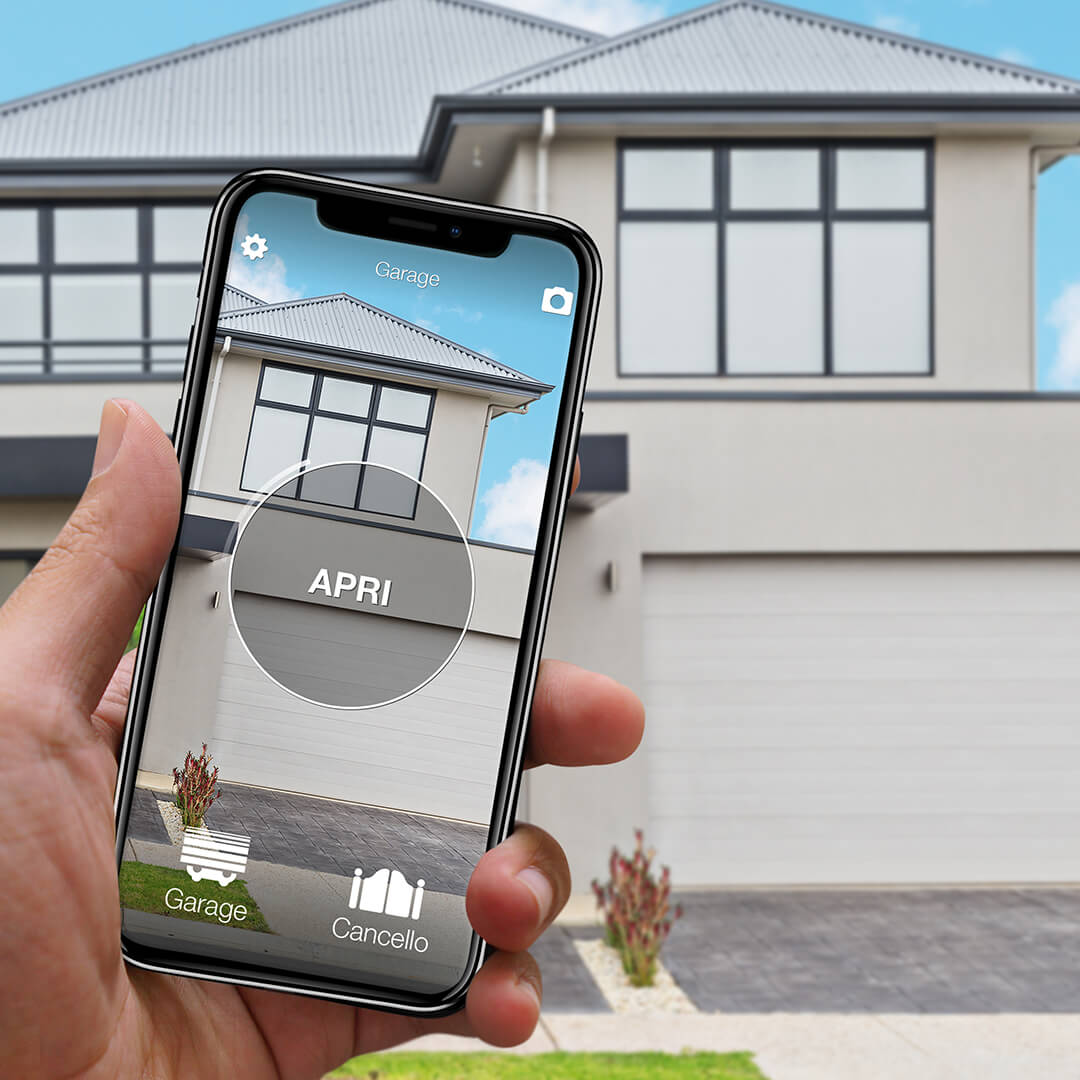
Want to open your gate from your phone?
Check in seconds whether your system is compatible with 1Control SOLO: it fits existing gates and garage doors, one-off purchase, no subscription.
139,00€ 119,00€ VAT included
- 1,500+ reviews on Amazon, Facebook and Trustpilot
- Secure payments
- 2-year warranty
Smart home control: lights, plugs and heating
Once a compatible device is linked to your Alexa account, voice control follows one grammar: the verb, then the name you gave the device or the room in the app. The commands below work with any compatible smart lights, plugs and thermostats — no specific brand required.
- “Alexa, turn on the living room lights” — assign each light to a room or group in the Alexa app and one command drives the lot.
- “Alexa, set the lights to 30 per cent” — dimming by percentage; “Alexa, dim the lights” also works.
- “Alexa, turn off the coffee machine” — a smart plug takes the name of whatever is plugged into it, which quietly turns ordinary appliances into voice-controlled ones.
- “Alexa, set the temperature to 20 degrees” — with a compatible smart thermostat; ask “Alexa, what’s the temperature inside?” to read it back.
- “Alexa, turn off downstairs” — create a group called Downstairs and bedtime becomes one sentence.
- “Alexa, turn off all the lights” — the blunt instrument, and the one you will use most.
Two naming rules save endless frustration: keep device names short, and never give two devices similar-sounding names. Note that smart-home devices answer direct commands like the ones above, while some skills use the longer form “Alexa, ask [skill name] to…”.
Routines: the commands you create yourself
The most useful Alexa command is often one Amazon never wrote. A routine bundles several actions under a single trigger phrase that you choose.
- “Alexa, good morning” — lights on full, today’s weather, the radio on, the plug under the kettle switched on.
- “Alexa, I’m leaving” — lights off, plugs off, heating down, and a spoken reminder to take your keys.
- “Alexa, good night” — everything off, alarm confirmed, hallway light dimmed for ten minutes then out.
Creating one genuinely takes about a minute: open the Alexa app, go to More, then Routines, and tap the plus. Under “When this happens” choose Voice and type your phrase; under “Add action” pick as many actions as you like; save. From that moment the phrase is a real command on every Echo in the house.
Privacy and settings commands
A voice assistant in the home should be on your terms. These commands keep it that way.
- “Alexa, delete what I just said” — removes the last recording immediately.
- “Alexa, delete everything I said today” — clears the day’s voice history; enable deletion by voice in the Alexa app’s privacy settings first.
- “Alexa, why did you do that?” — a plain-language explanation of the assistant’s last action, useful when a routine fires unexpectedly.
- “Alexa, set the alarm volume to 4” — alarm and timer volume is separate from media volume, so the 7 am alarm stops matching last night’s film.
- “Alexa, turn on do not disturb” — blocks calls, Drop In and announcements on that device until you turn it off.
- “Alexa, turn on whisper mode” — whisper at the speaker and it whispers back. Made for late evenings and sleeping children.
One honest note: no voice command can switch the microphone off — a muted microphone could not hear you unmute it. That is what the physical mic button on top is for.
Gates, garage and doors by voice
“Alexa, open the gate” is the command that moves voice control from pleasant to genuinely practical: hands full of shopping, on a bike in the rain, in the car with the window up. But a gate motor does not become voice-controllable on its own — it needs two things in front of it.
In the 1Control ecosystem those two things are SOLO and LINK. SOLO learns the signal of your existing remote and adds smartphone control on top of the automation you already have — nothing changes on the gate’s control unit. On its own, SOLO opens the gate over Bluetooth when you are nearby. For voice you add LINK, a bridge that connects to your router over Wi-Fi or Ethernet and forwards commands to SOLO over Bluetooth. Enable the 1Control skill, run device discovery, and the commands are exactly what you would hope:
- “Alexa, open the gate”
- “Alexa, open the garage” — the device answers to the name you set in the 1Control app, so keep it short and distinctive
Family members do not need your phone: shares are free and revocable at any time, so each person opens the gate from their own account — and their own speaker.
The same recipe extends to the front door: a DORY smart cylinder paired with the same LINK bridge brings the door under Alexa and Google Home control too. Whether you want voice on the front door is a personal choice — plenty of households give voice to gates and garage and keep the door on phone, watch and mechanical key. For the full setup, Google Home included, see the dedicated guide to opening gates with Alexa and Google Home.
Frequently asked questions
What are the most useful Alexa commands?
The commands that earn daily use are named timers (“Alexa, set a pasta timer for 10 minutes”), shopping lists (“Alexa, add milk to the shopping list”), recurring reminders, whole-house announcements (“Alexa, announce that dinner is ready”) and routines triggered by a phrase you choose, such as “Alexa, good morning”. If you have a gate or garage, “Alexa, open the gate” with 1Control SOLO and LINK is the one that saves the most time.
Can Alexa open my gate or garage?
Yes. With 1Control SOLO working alongside your existing gate or garage automation and a LINK bridge connected to your home network, you enable the 1Control skill and say “Alexa, open the gate”. SOLO uses the same signal as the remote you already own, so nothing changes on the control unit. Voice control covers gates, garages and barriers — and with a DORY smart cylinder paired to LINK, the front door as well.
Can I create my own Alexa commands?
Yes, with routines. In the Alexa app go to More, then Routines, and create a new one: choose Voice as the trigger, type the phrase you want to say, and add one or more actions. From then on, saying that phrase runs all the actions at once. Building a routine takes about a minute and no technical knowledge.
How do I delete what Alexa has recorded?
Say “Alexa, delete what I just said” to remove the last recording, or “Alexa, delete everything I said today” for the whole day. The day-level command first needs deletion by voice enabled in the Alexa app’s privacy settings. You can also review and delete the full voice history in the app at any time.
Conclusion: ten commands, one routine, one gate
Alexa is exactly as useful as the commands you remember to say. Start with the ten at the top of this page, build one routine this week, and if a gate or garage door is part of your daily round, make “Alexa, open the gate” the next command you add. From the car, the same SOLO responds to a tap on the dashboard display or to Siri — that story is in our guide to opening the gate with CarPlay. And if voice is your first step towards a wider setup, the smart home beginner’s guide maps out what to automate next, one solved problem at a time.