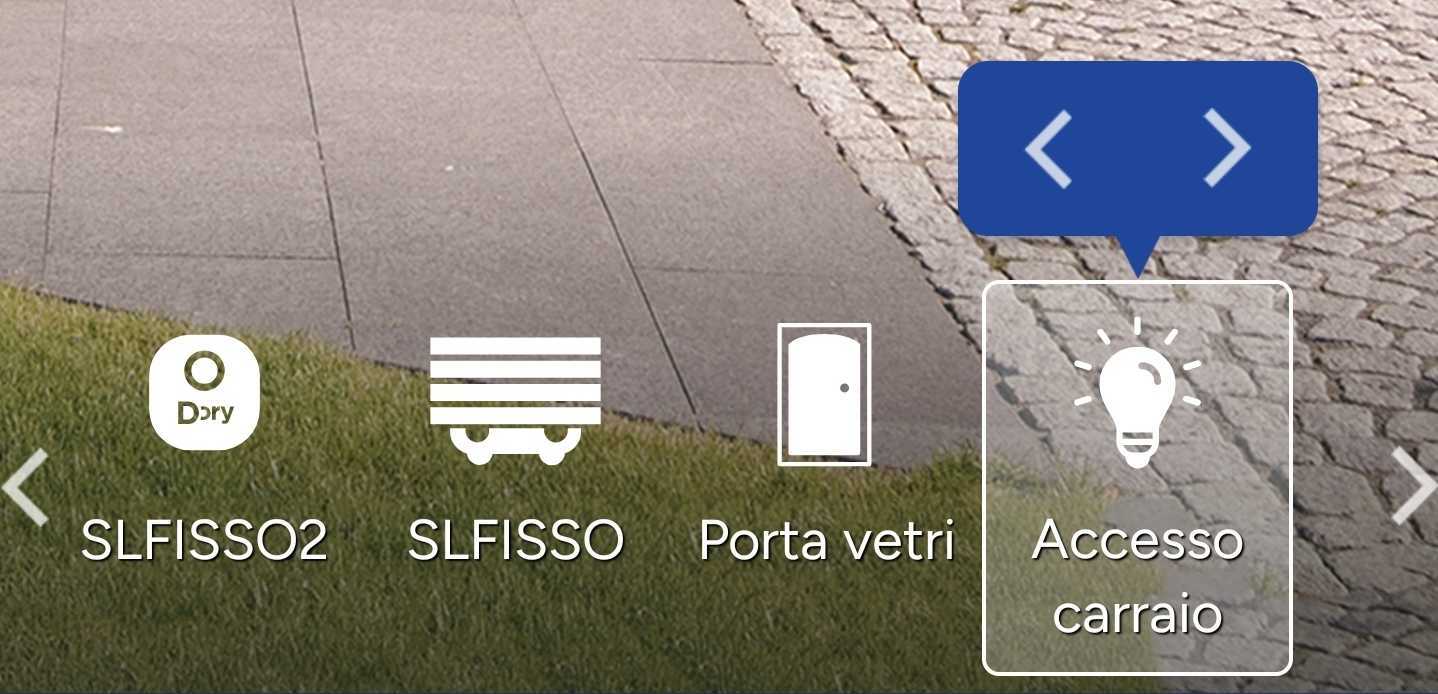
With the 1Control app, you can customize the order of your automation icons, so you always have the ones you use most at hand. The procedure is slightly different for iOS and Android: below are the steps for both systems.
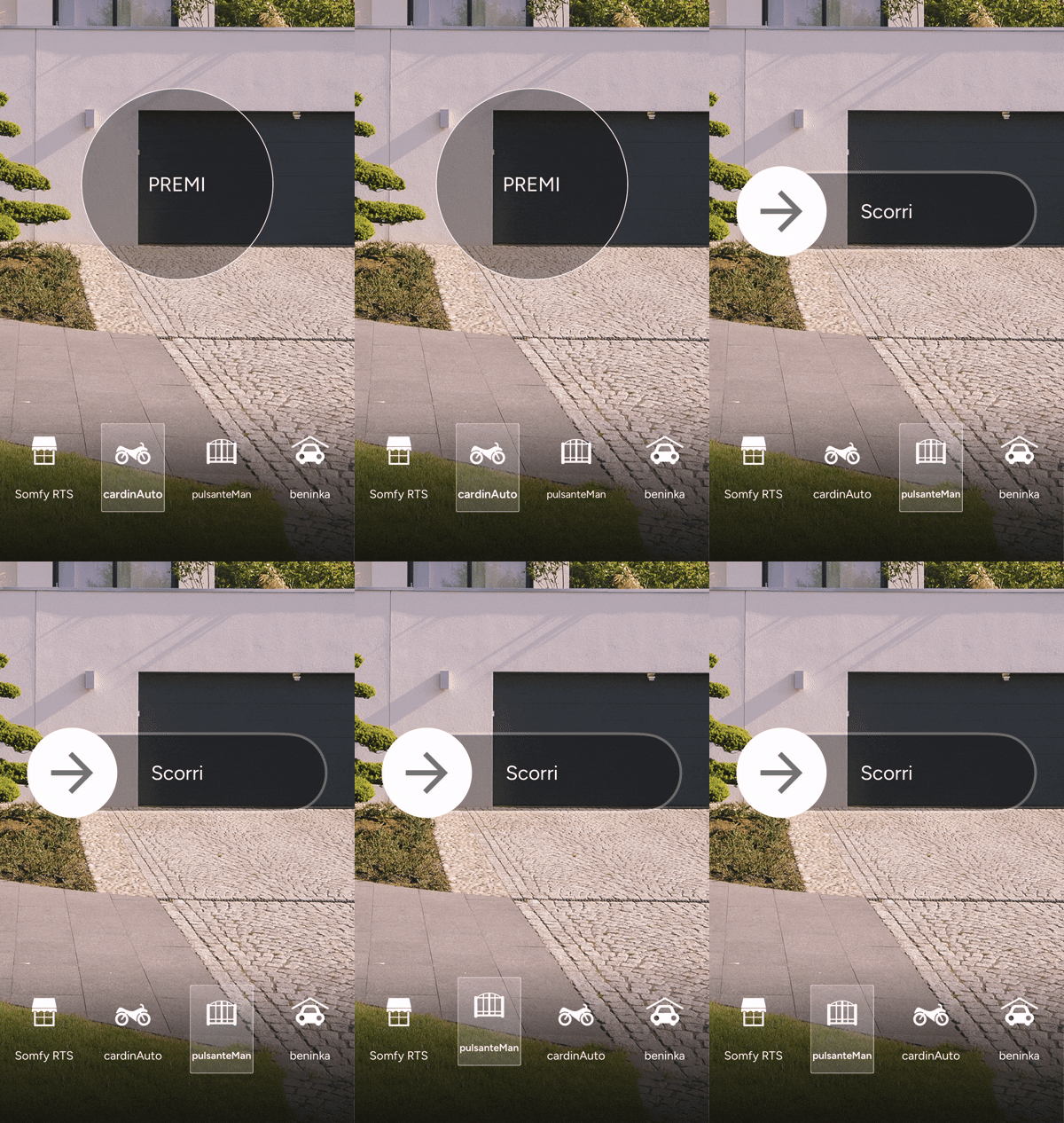
On iOS
- press and hold the automation icon you want to move;
- drag it to the desired position;
- Release your finger to confirm the new position.
On Android
The procedure is similar, but after you hold down the icon, a pop-up will appear that will allow you to move it to the desired position.