The second generation LINK can be connected to the network via RJ45 ethernet cable . 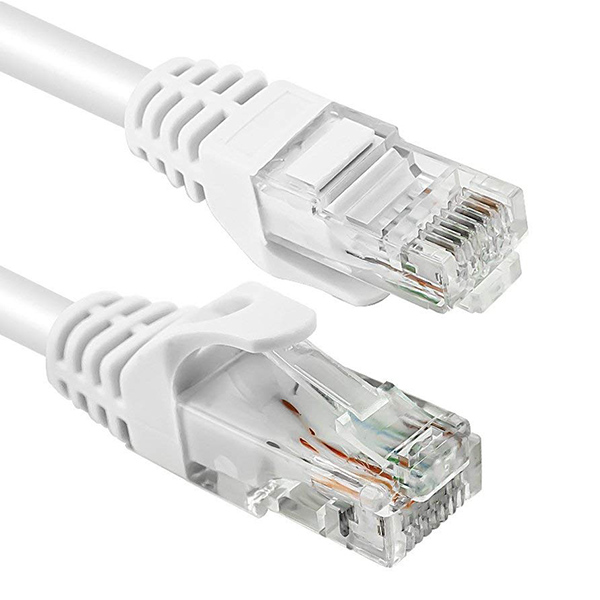
To enable the feature in the app, follow the instructions as indicated:
- Open the 1Control app
- Enter the settings by pressing the gear in the top left
- Open the "Manage your devices" section
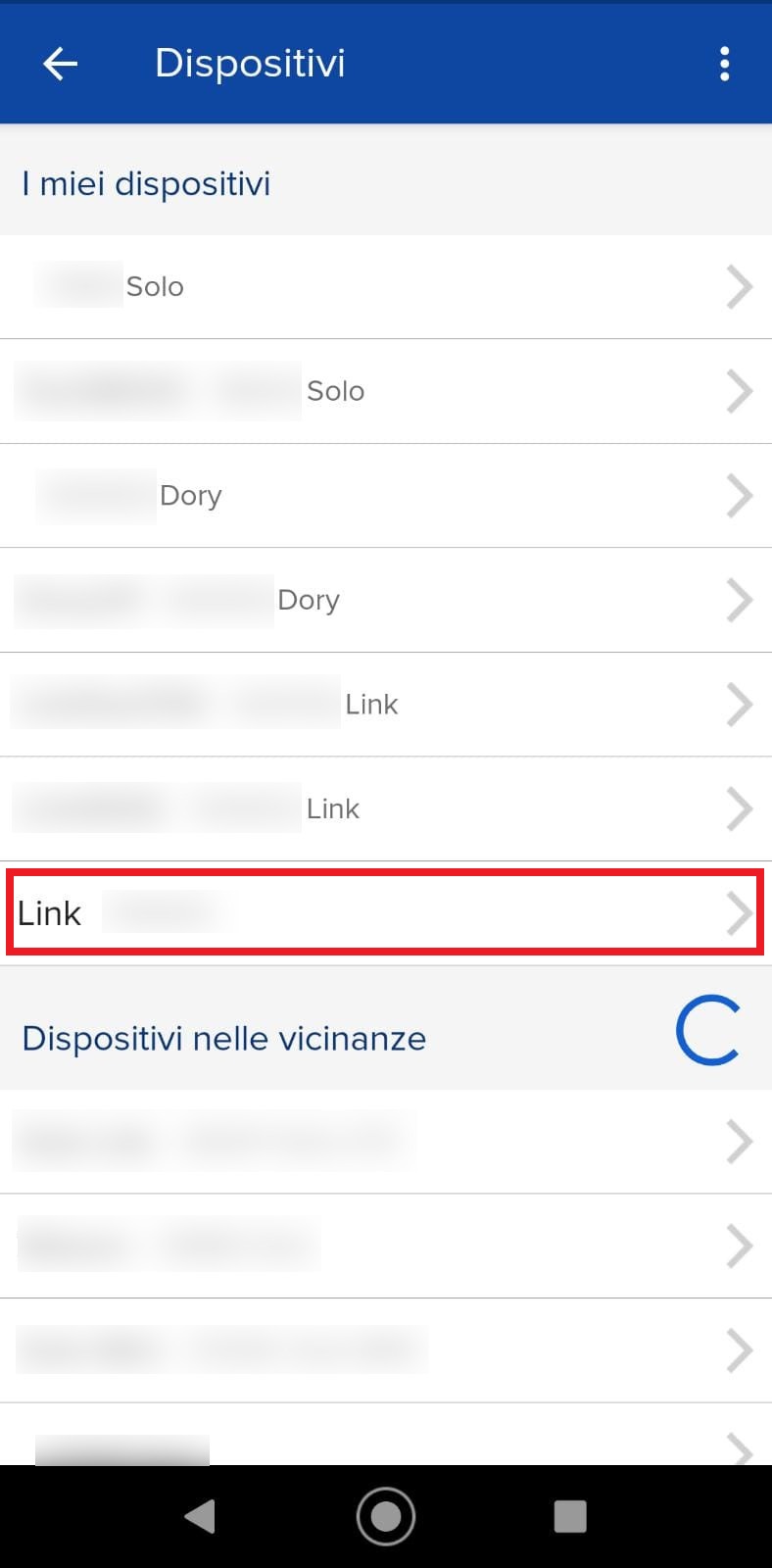
- Select your LINK from "My Devices"
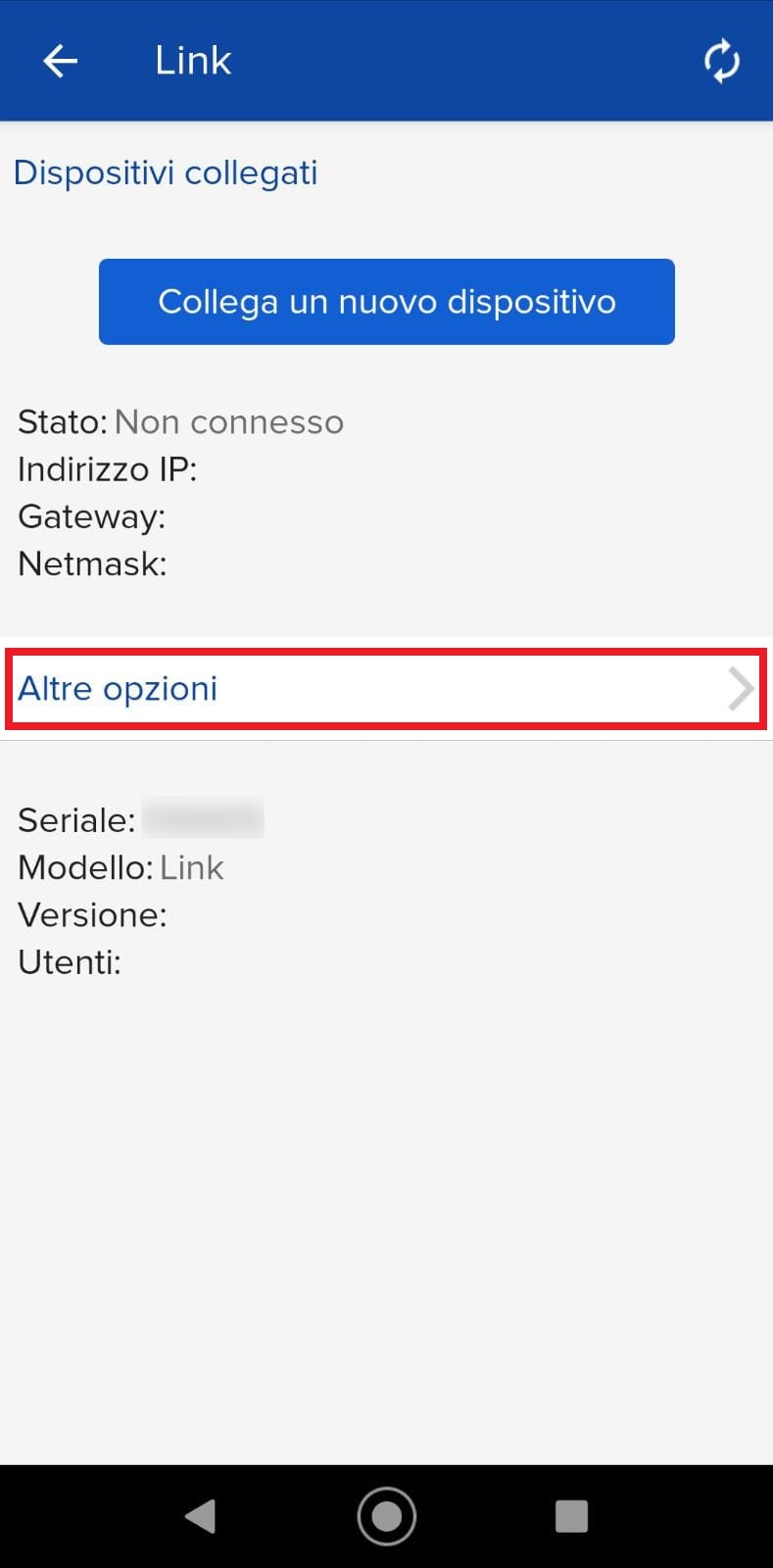
- From the device details screen, tap on "More options"
- Press "Network Configuration"
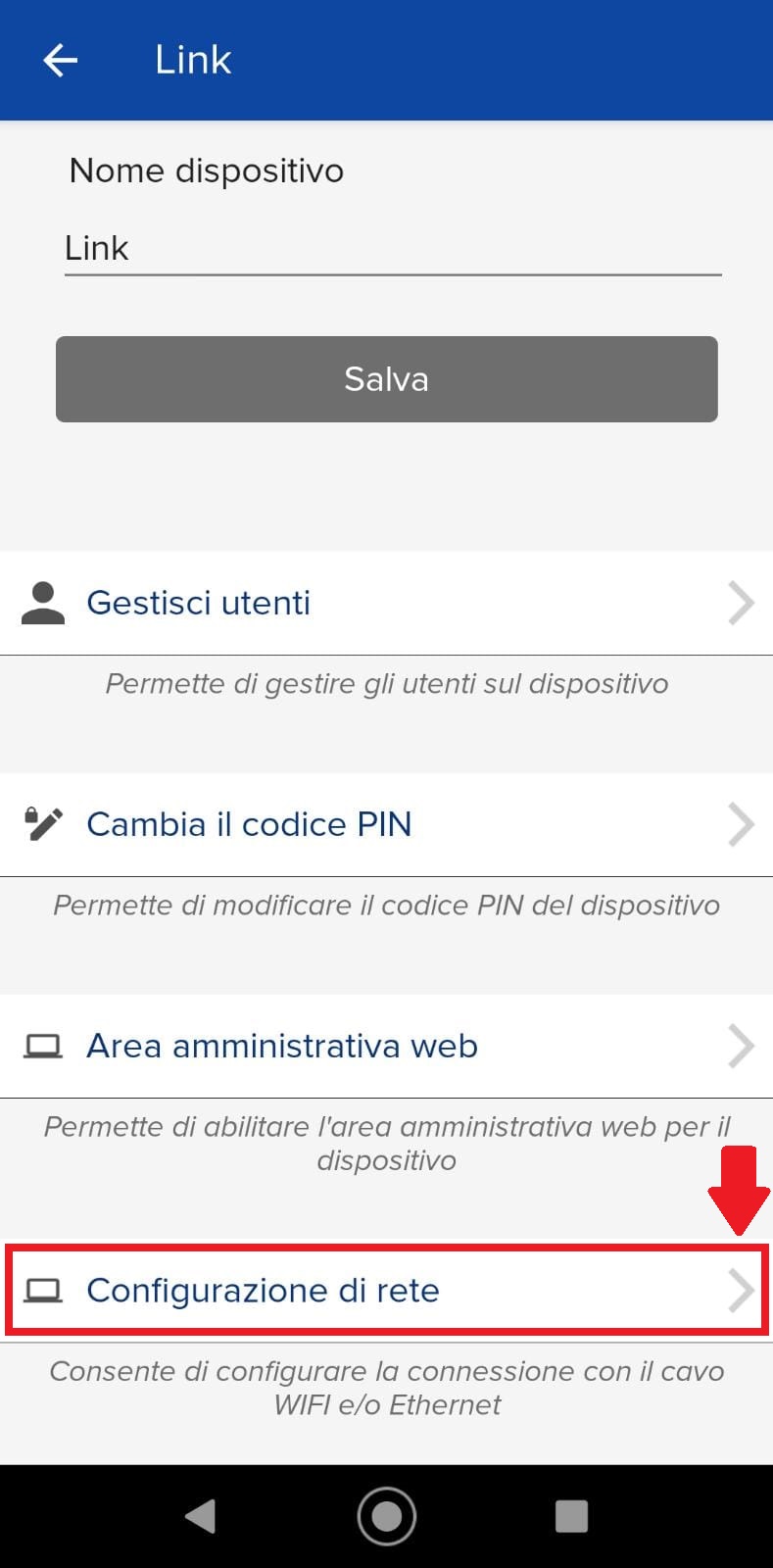
- If the Wi-Fi connection is enabled, it must be turned off by pressing the button indicated by the arrow and confirming the operation, then wait a couple of minutes for LINK to restart (do not unplug the LINK during this procedure).
If it is already turned off, there is no need to make any changes.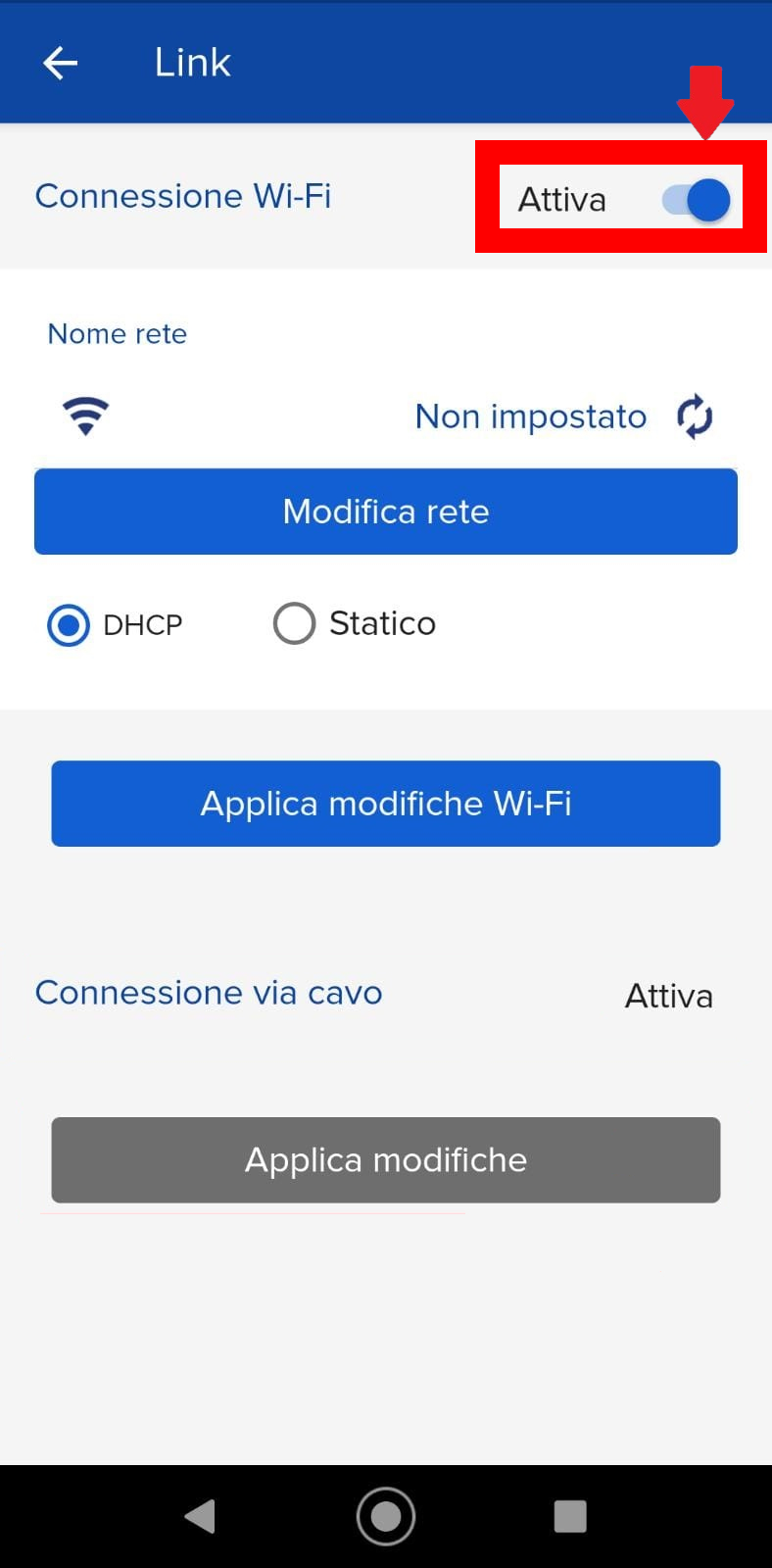
- The cable connection is always enabled, so you can proceed by connecting the cable
- Make sure that once connected, within a couple of minutes, the white LED on the LINK, located under the globe icon, must remain solidly lit.
If it continues to flash, this indicates that it cannot establish a stable connection, in this case you can try changing the cable used and/or changing the port to which it was connected