Below are the instructions to enable shortcuts for Android Auto:
(To opening via Google Home Shortcut on Android Auto it is necessary to use SOLO and the Hub Wi-Fi LINK)
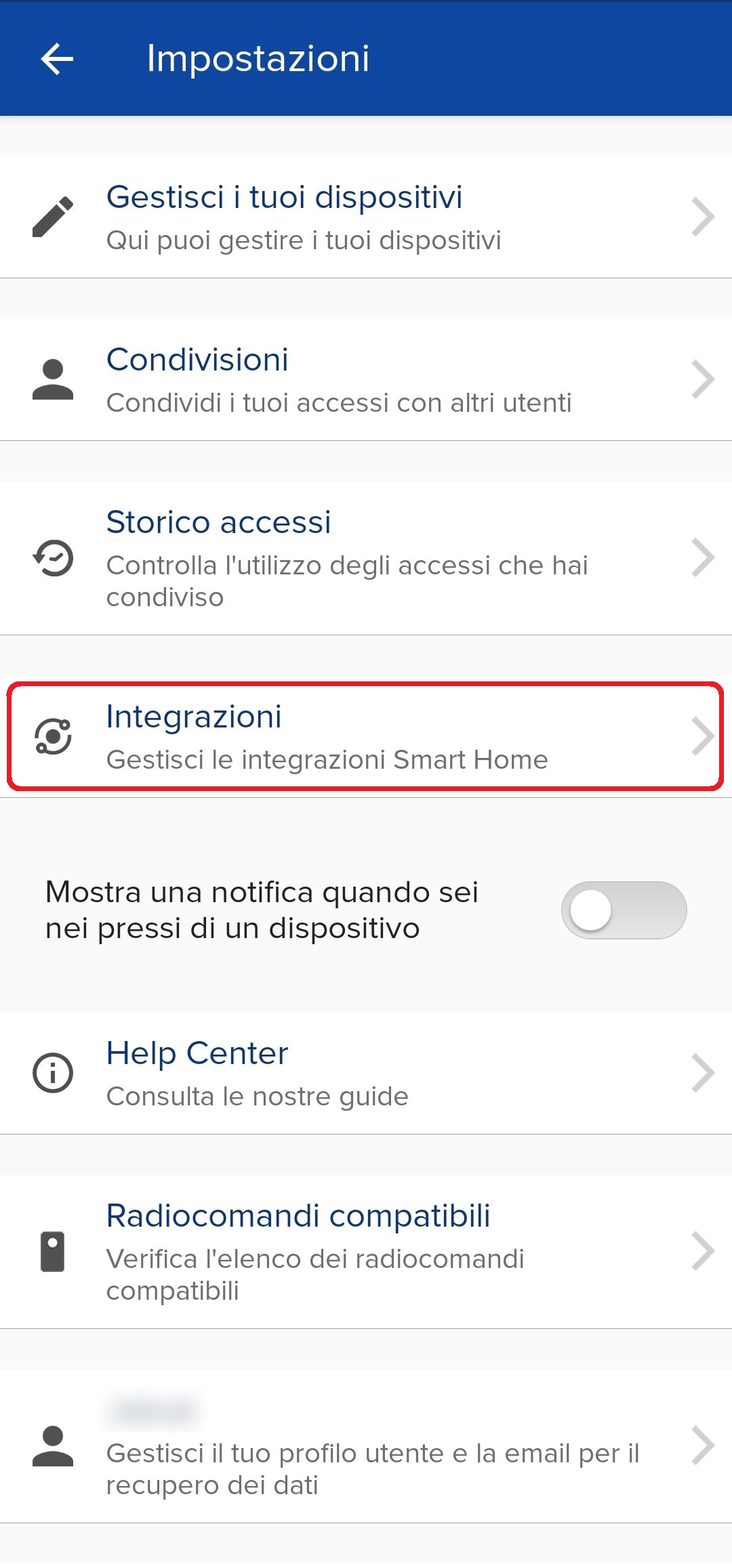
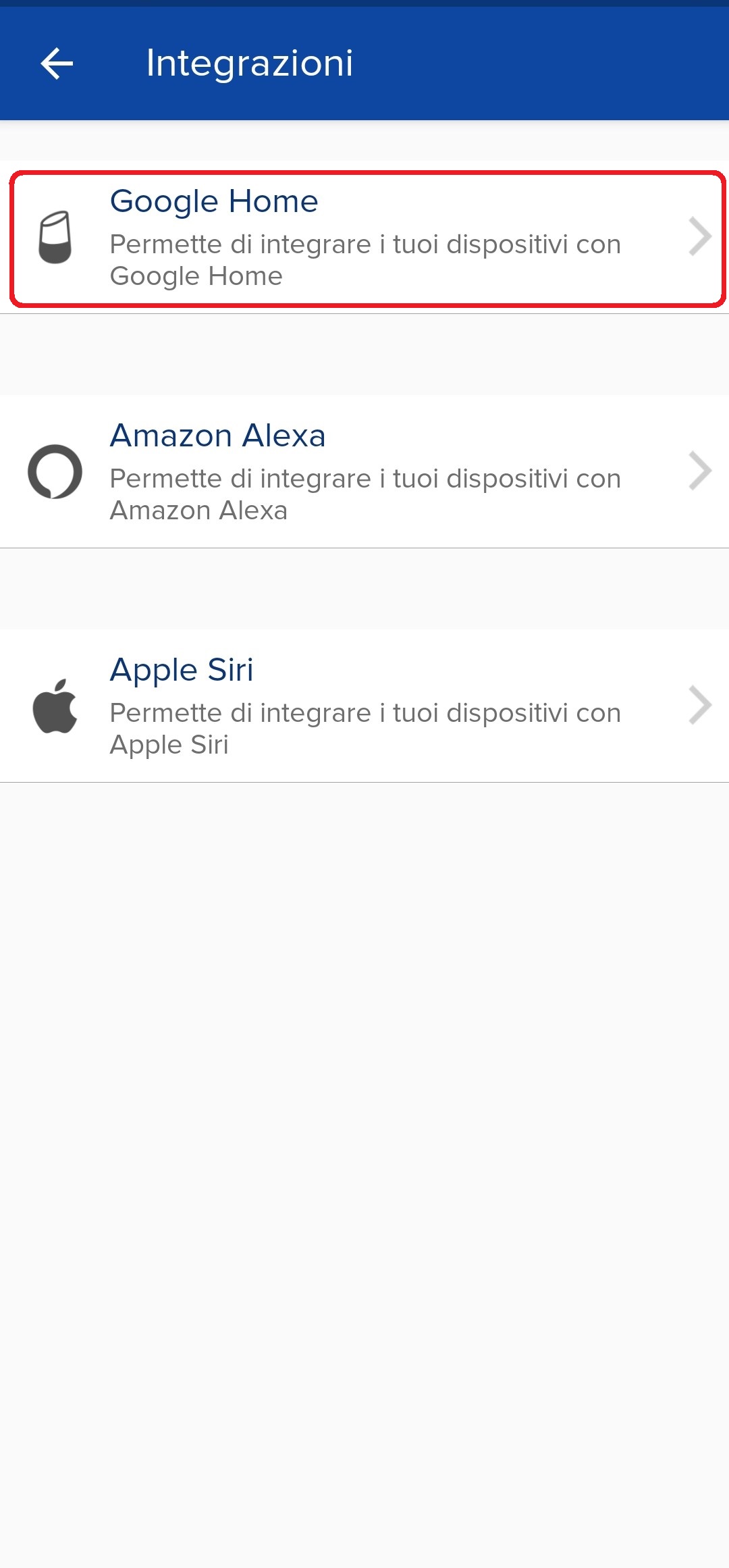
From the settings of our 1Control app (gear wheel in Home) select "Integrations" and then press on "Google Home"
 |
 |
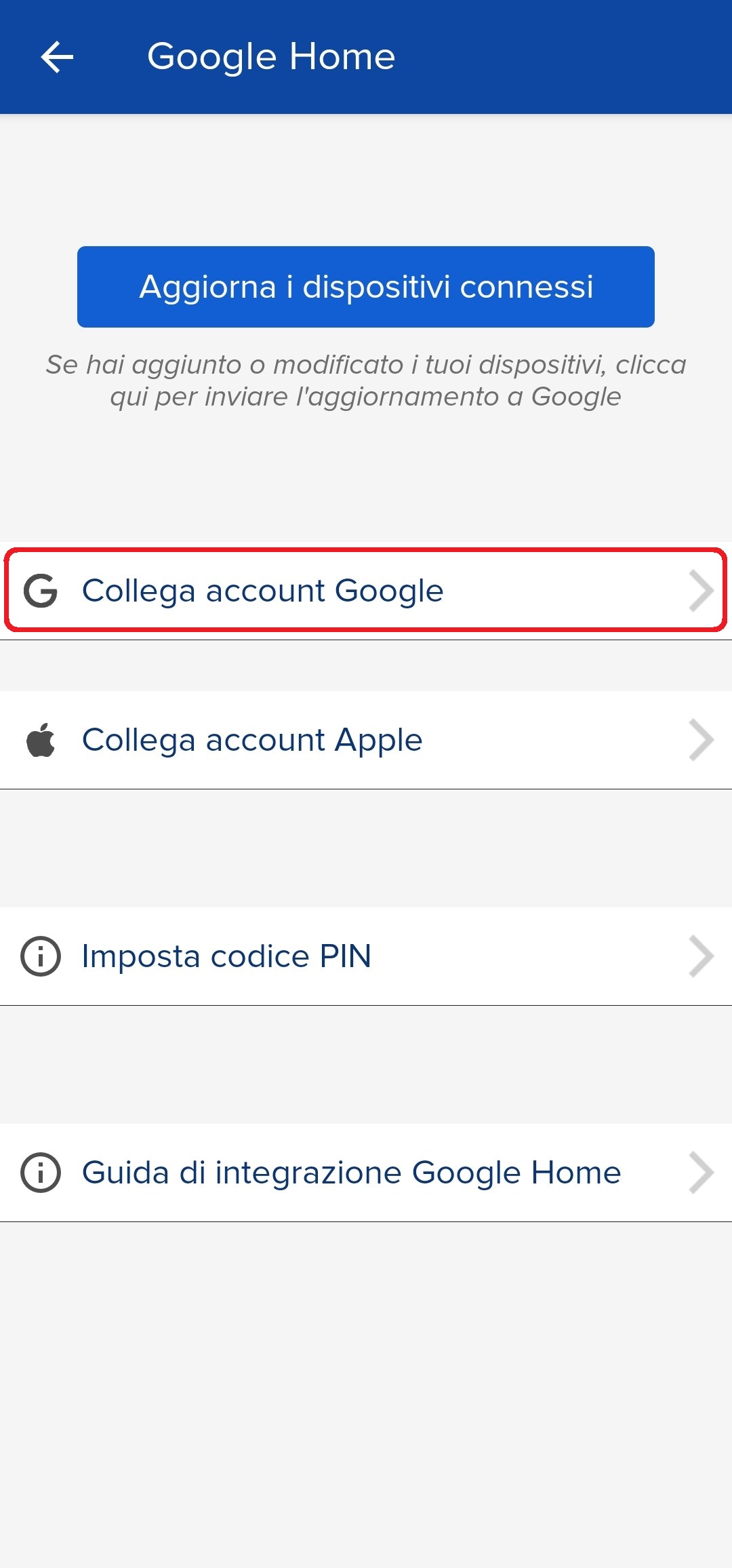
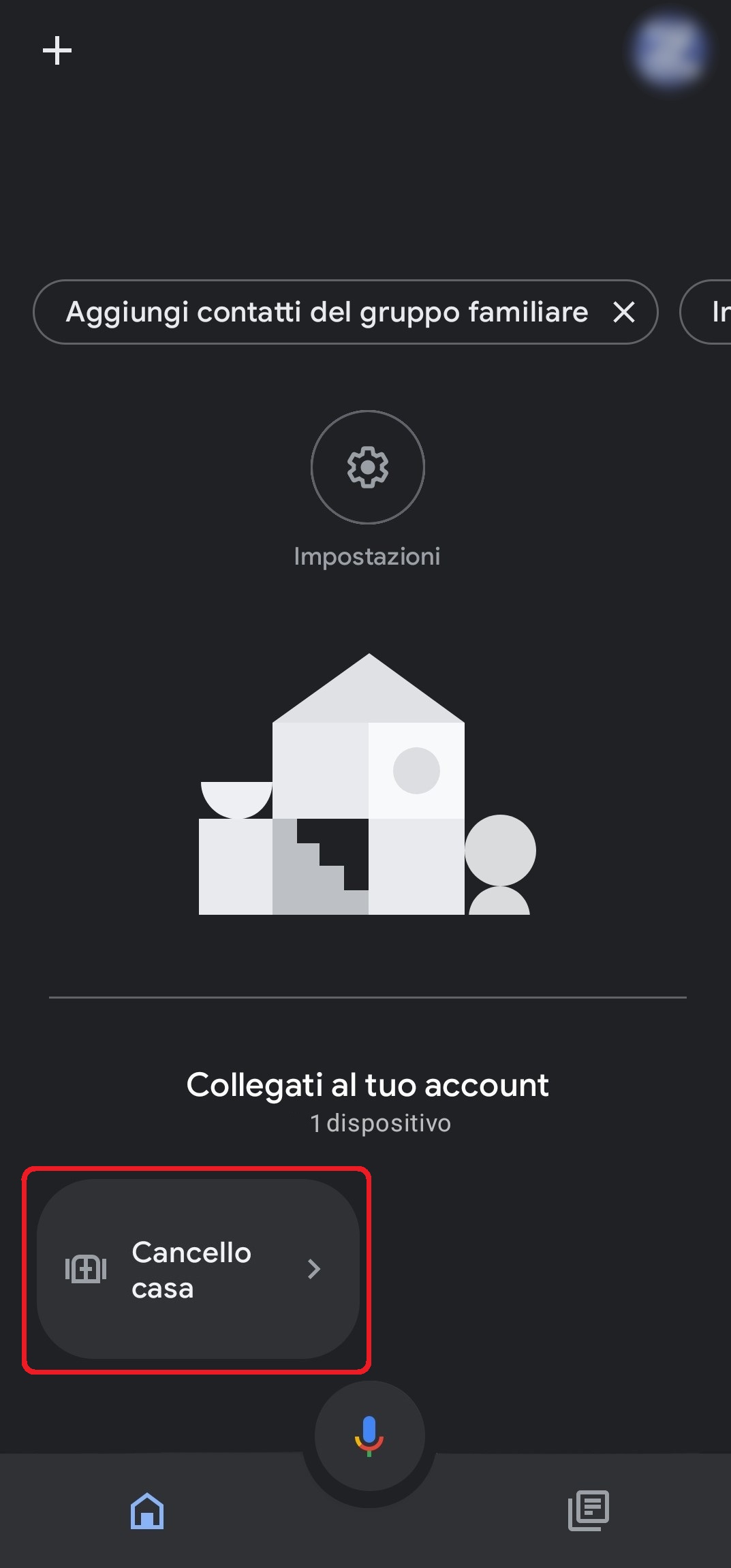
Connect your Google account, then open the "Google Home" app and select the command related to your access
 |
 |
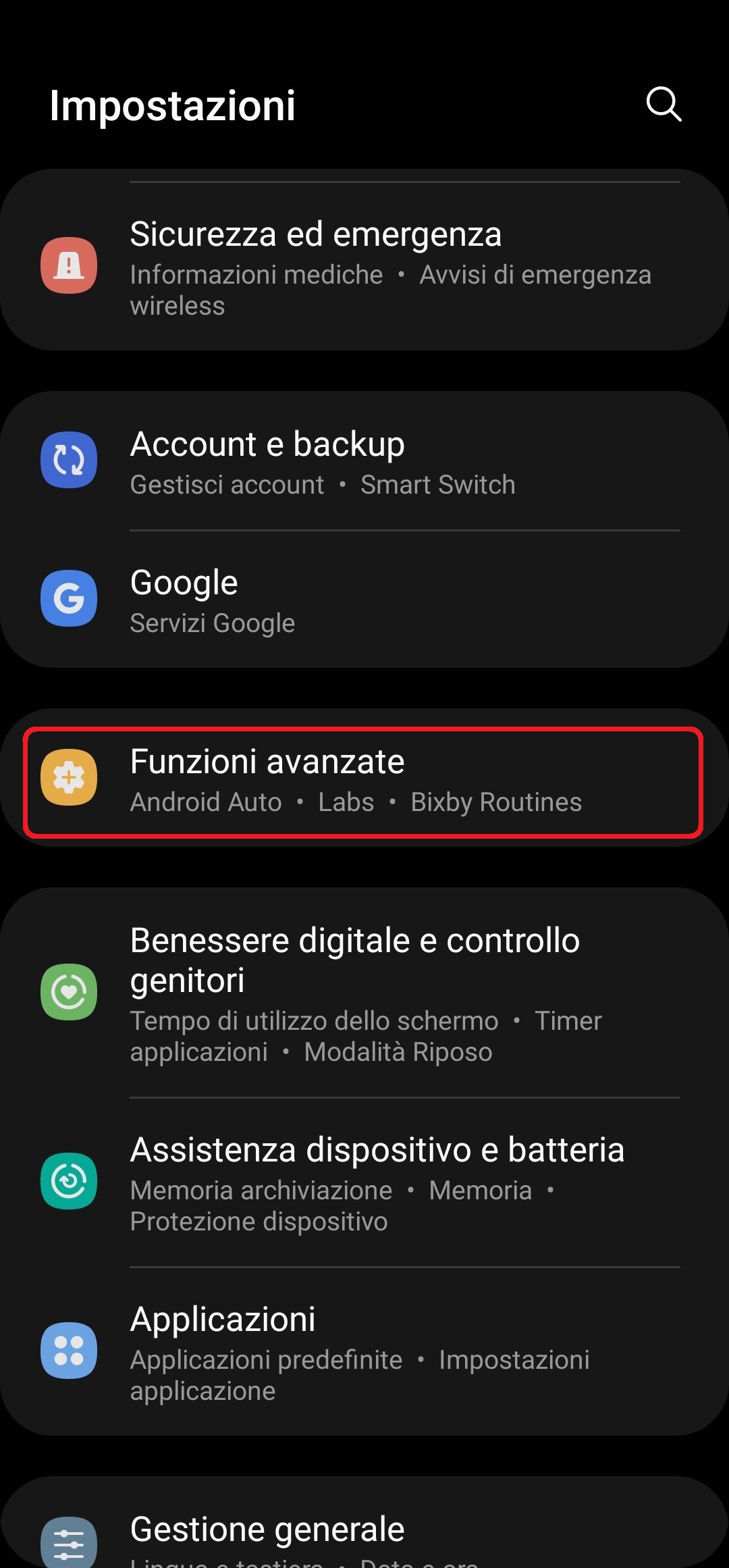
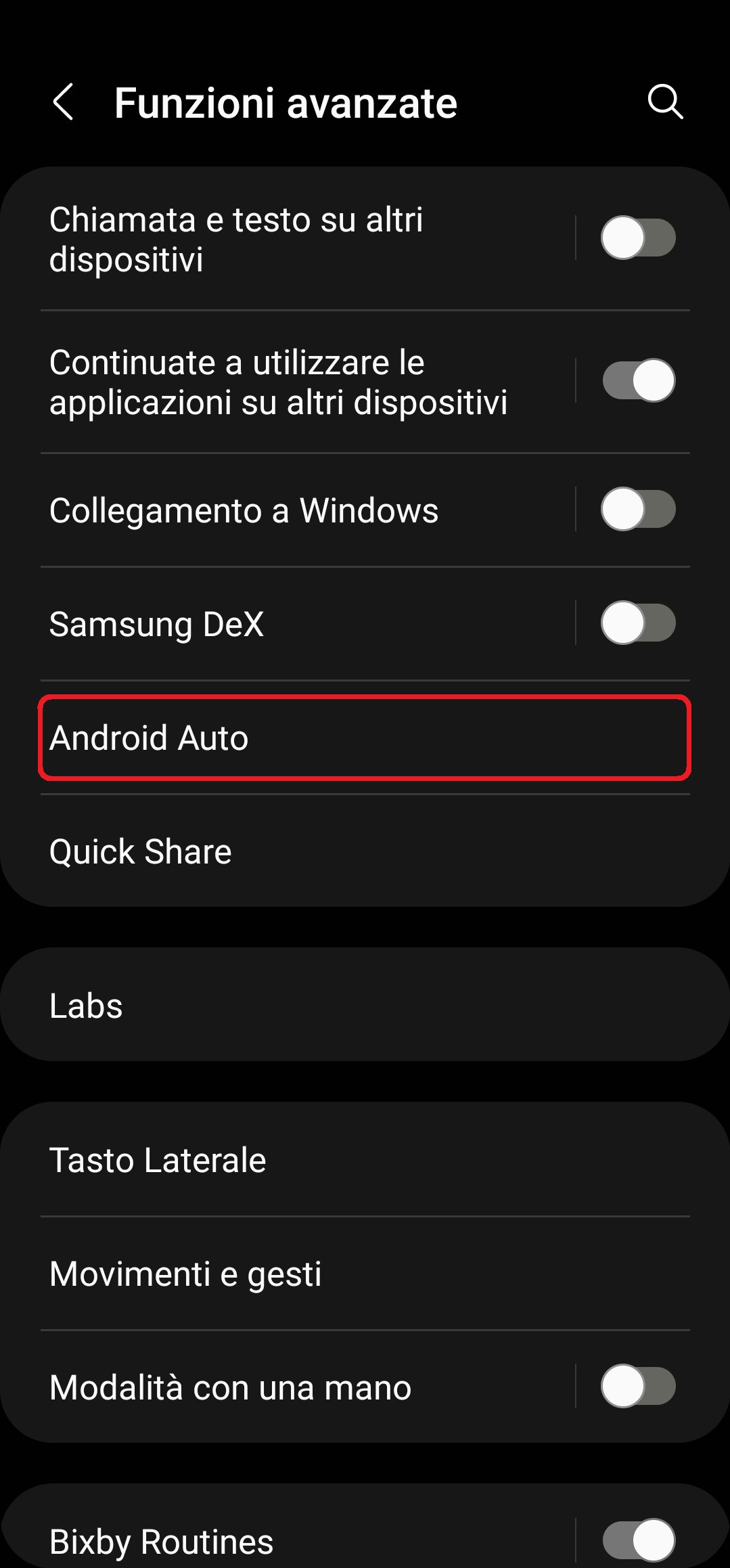
Enter "advanced settings" in the settings of your smartphone and select "Android Auto"
 |
 |
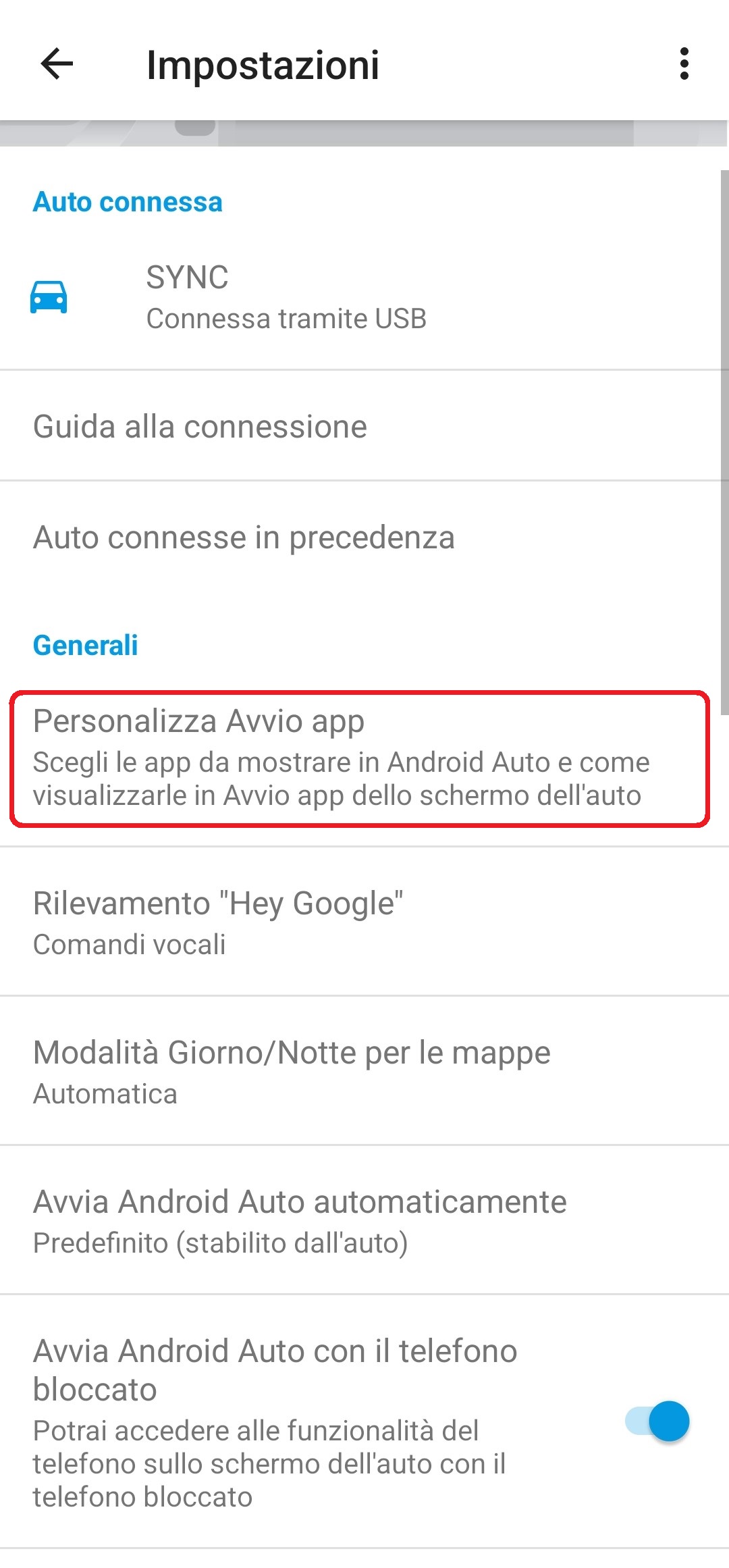
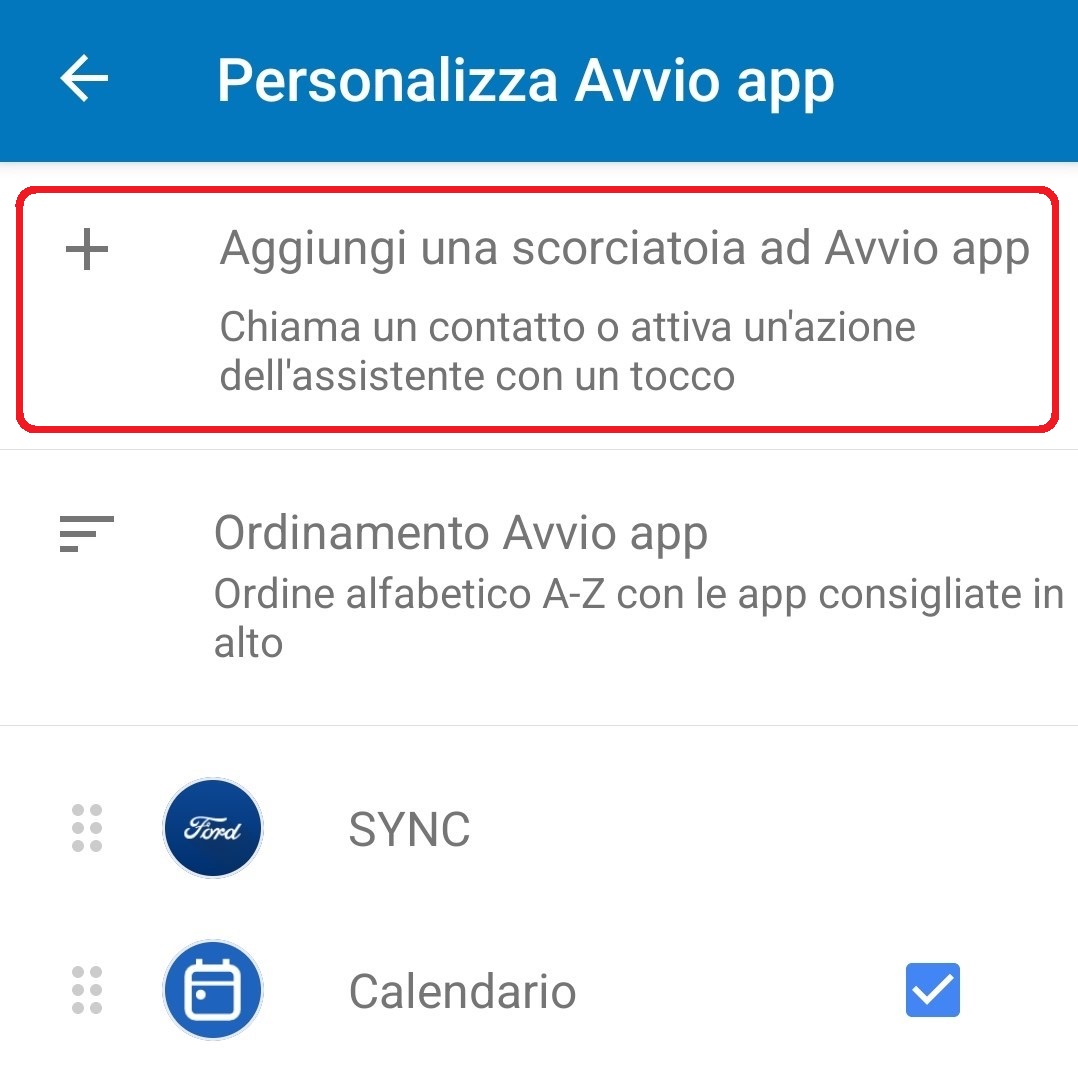
In the general settings related to Android Auto select "Customize App Launcher" and then "Add a shortcut to App Launcher"
 |
 |
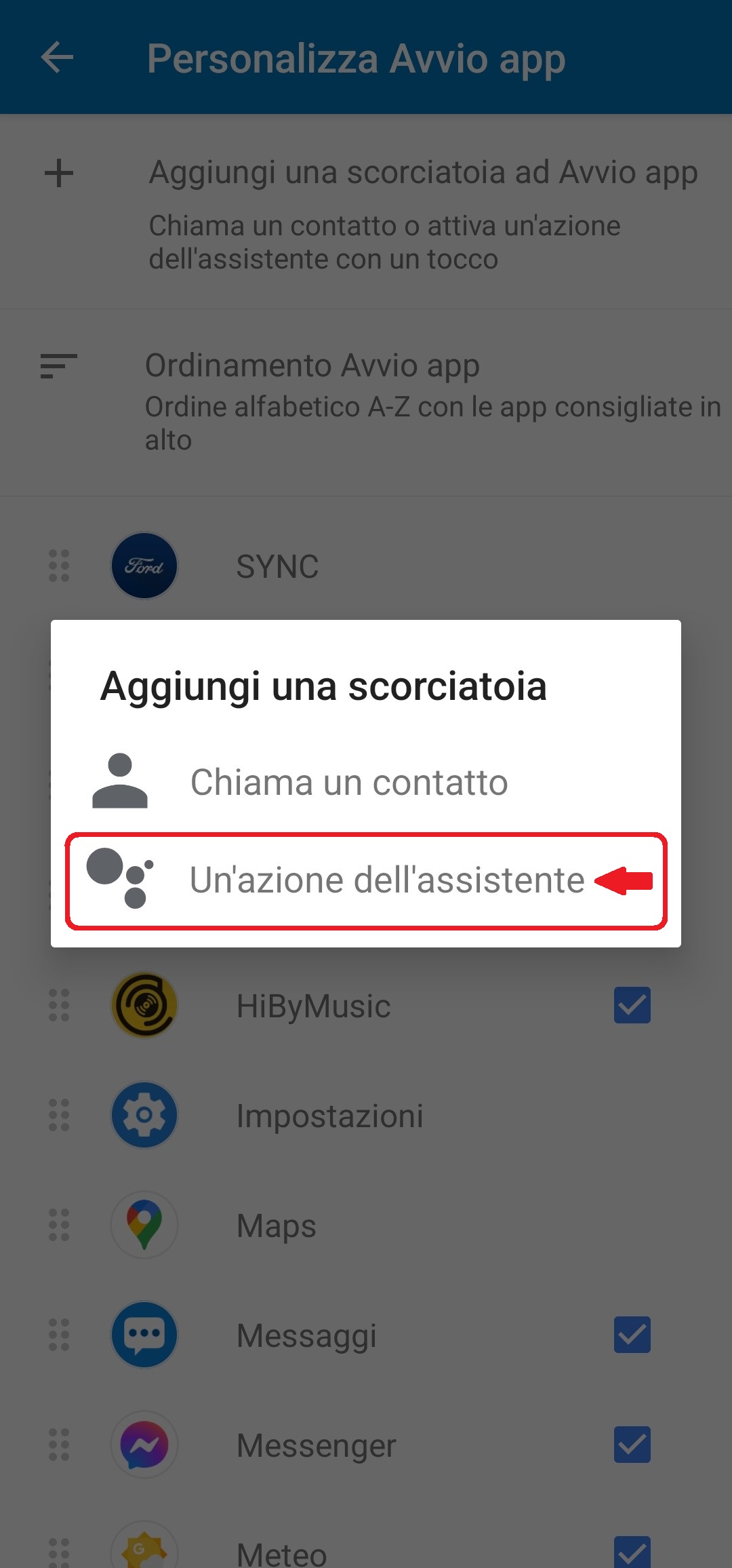
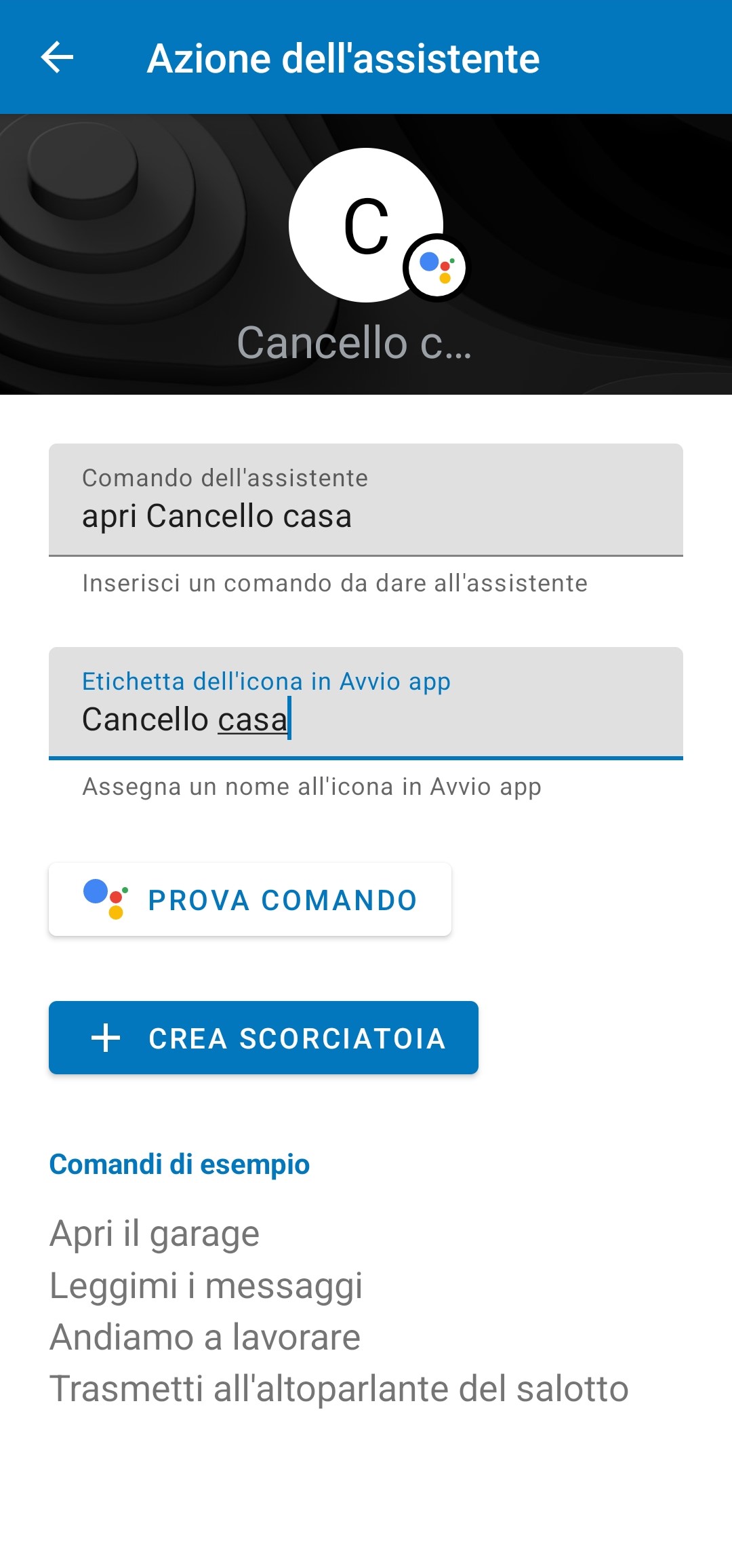
Select the item "An assistant action"  , create (rename) the Assistant Command and choose the name of the icon label in the App Launcher as shown in the example.
Finally, try the command by pressing the key  and create the shortcut
pressing this key 
 |
 |
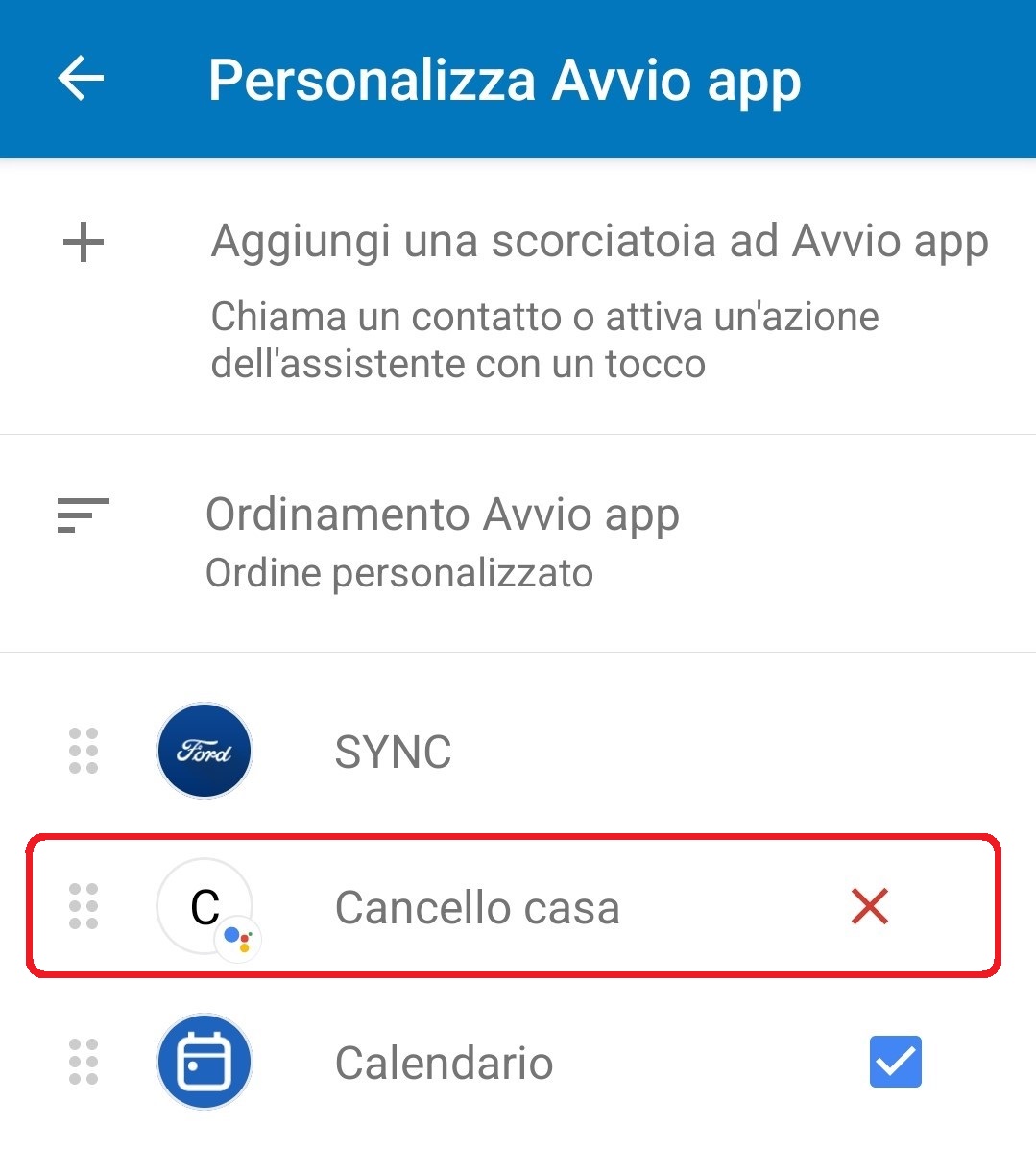
At this point the shortcut has been created and is present in the list of shortcuts in "Customize App Launcher"
 |
Below is a practical example of the final result:
* (The smartphone is only used to create the shortcut, the command will work directly from Android Auto).